DAX User-Defined Functions
DAX User-Defined Functions (DAX UDFs) are a capability of semantic models. The feature entered preview with the September 2025 update of Power BI Desktop and is generally available since the June 2026 release of Power BI.
A DAX UDF is a reusable DAX function that you can call from any DAX expression in the model, including other functions. For an introduction to DAX UDFs in Tabular Editor 3, see the blog post How to get started using UDFs in Tabular Editor 3.
Understanding DAX UDFs
A DAX UDF has a list of parameters and a DAX expression that computes a result from them. Parameters can be scalar values, tables or references to model objects, and the result can be a scalar value or a table.
For more information on how DAX UDFs work, see the SQLBI article Introducing user-defined functions in DAX.
Prerequisites
DAX UDFs require a model at compatibility level 1702 or higher.
Creating Your First DAX UDF
Step 1: Set Up the Model
Check the model's compatibility level:
- Open your model in Tabular Editor 3.
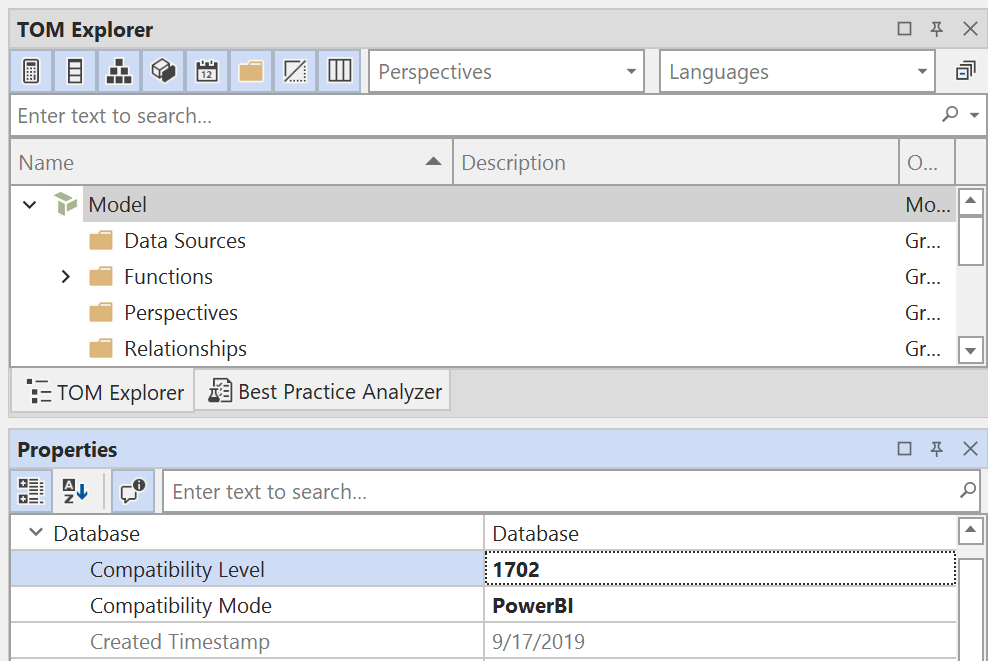
- Select the root node (Model) in the TOM Explorer.
- In the Properties view, expand the Database property and check that Compatibility Level is 1702 or higher.
- If it's lower, update the compatibility level and save the model.
Step 2: Add a New Function
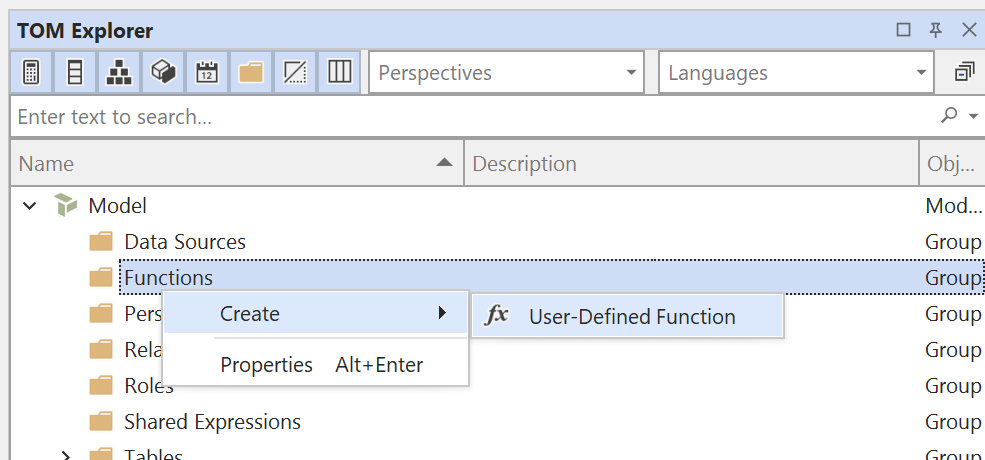
- In the TOM Explorer, locate the Functions folder under your model.
- Right-click the Functions folder.
- Select Create > User-Defined Function.
- Name the function. Names can contain underscores and periods, but no spaces or other special characters.
Model > Add User-Defined Function also adds a DAX UDF.
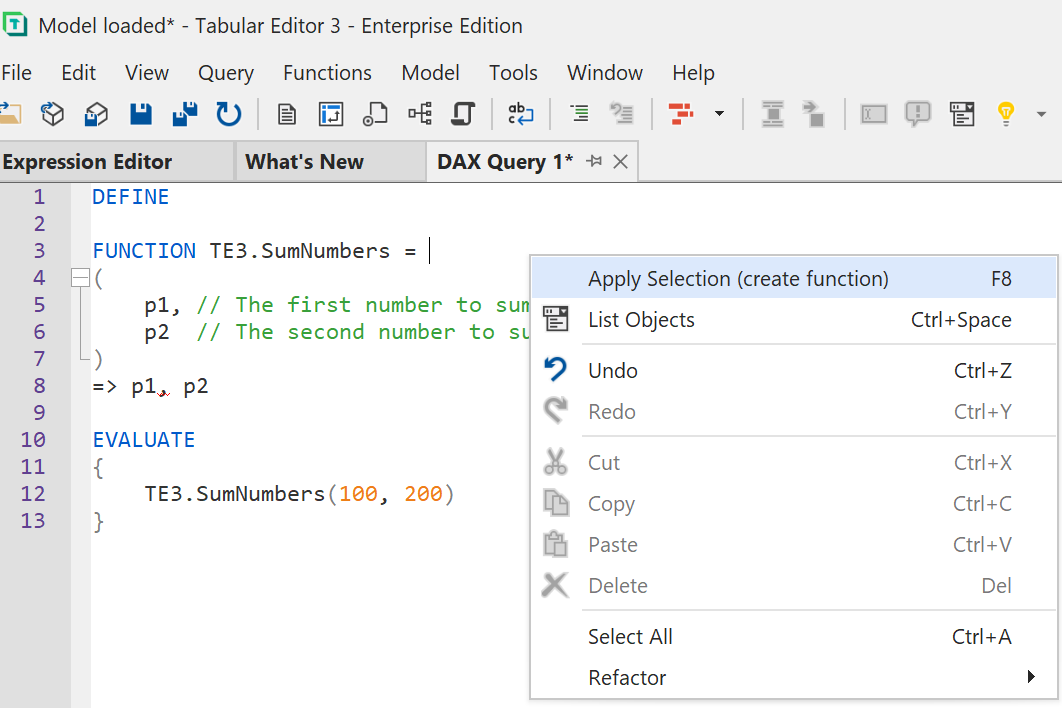
You can also create DAX UDFs from the DEFINE section of a DAX query with Query > Apply (F7). To apply only some of the query's definitions, select them and press F8 (Apply Selection).
Step 3: Define Your Function
Enter the function definition in the Expression Editor, for example this function, which adds two numbers:
// Adds two numbers together
(
    x, // The first number
    y  // The second number
)
=> x + y
Tip
The Use correct UDF syntax code action in the Expression Editor rewrites the expression into valid DAX UDF syntax.
DAX UDF Syntax and Structure
Basic Syntax
A DAX UDF definition has this structure:
FUNCTION FunctionName =
    // Optional comment describing the function
    (
        parameter1, // Parameter description
        parameter2, // Parameter description
        // ... more parameters
    )
    => expression_using_parameters
Parameter Evaluation Mode
Each parameter is either pass-by-value or pass-by-reference, and is pass-by-value unless you specify otherwise.
A pass-by-value parameter behaves like a DAX variable defined with VAR: the argument is evaluated once when the function is called, and every reference to the parameter inside the function returns that value.
A pass-by-reference parameter behaves like a measure: each reference to the parameter inside the function is evaluated in the evaluation context where it appears.
Set the mode with a colon (:) after the parameter name, followed by VAL (pass-by-value) or EXPR (pass-by-reference), and if you omit it, the parameter is VAL:
(
    x: VAL,   // Pass-by-value parameter - the DAX expression is evaluated once when the function is called, and the result is "copied" into the function
    y: EXPR   // Pass-by-reference parameter - can be any DAX expression which will observe whatever context the parameter is later referenced under
)
=>
ROW(
    "x", x,
    "x modified", CALCULATE(x, Product[Color] = "Red"),
    "y", y,
    "y modified", CALCULATE(y, Product[Color] = "Red")
)
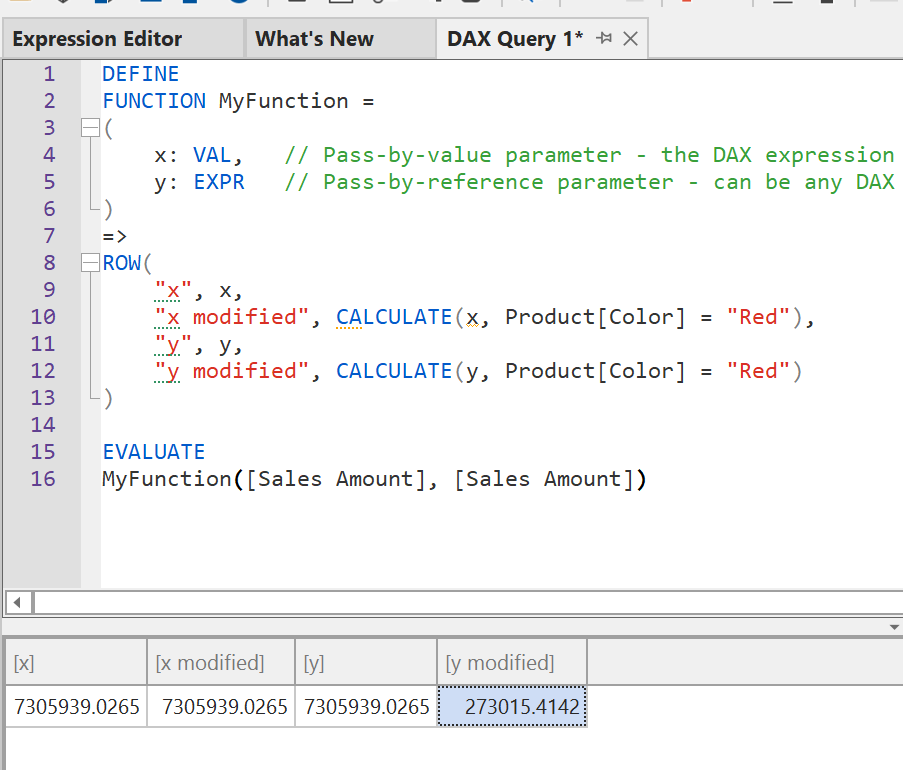
If you call this function with the same measure reference for both parameters, for example MyFunction([Some Measure], [Some Measure]), only the y results change with the filter context:
To constrain the parameter type, which is optional, put a data type before the evaluation mode, for example x: INT64 VAL or y: TABLE EXPR. If a type is present, arguments are implicitly converted to the type, and Tabular Editor 3 uses the type in autocomplete suggestions for code that calls the function.
Tabular Editor 3 validates arguments against the declared parameter types. If you call a UDF with an argument that doesn't match its parameter type, such as a scalar value where a TABLEREF parameter is expected, the Semantic Analyzer reports a warning or error.
Check the Microsoft specification for UDFs for the complete list of available constraints.
Optional Parameters with Default Expressions
Tabular Editor 3.26.2 and later support optional parameters with default expressions. To make a parameter optional, append = expression after the parameter name and any type or evaluation-mode hints. If the caller omits the argument, the default expression supplies the value.
FUNCTION AddTax =
    (
        amount: NUMERIC,        // Required parameter
        taxRate: NUMERIC = 0.1  // Optional parameter, defaults to 10%
    )
    => amount * (1 + taxRate)
Calling AddTax(10) returns 11, while AddTax(10, 0.25) returns 12.5.
Optional parameters follow these rules:
- Callers can leave an argument empty to fall back to its default, e.g.
MyFunc(1,,3)omits the second argument. The minimum number of arguments is determined by the position of the rightmost required parameter. - A default expression can only reference names (columns, tables, measures, functions) visible where the function is defined, and it can't reference another parameter of the same function.
- Type checking against a parameter's type hint is enforced only when the default expression is used; an explicitly passed argument is checked against the hint instead.
Using DAX UDFs in Your Model
In Object Expressions
You can call a DAX UDF from any DAX expression in the model, and autocomplete suggests DAX UDFs as you type.
In DAX Scripts
DAX scripts can define and call DAX UDFs:
-- Function: MyFuncRenamed
FUNCTION MyFuncRenamed =
    // Adds two numbers together
    (
        x: INT64, // The first number
        y: INT64  // The second number
    )
    => x + y

-- Measure: [New Measure]
MEASURE 'Date'[New Measure] = MyFuncRenamed(1,2)
In DAX Queries
Besides applying a DAX UDF from the DEFINE section of a query to the model, you can right-click a function call in a DAX query and choose Define Function to add the function definition to the DEFINE section:
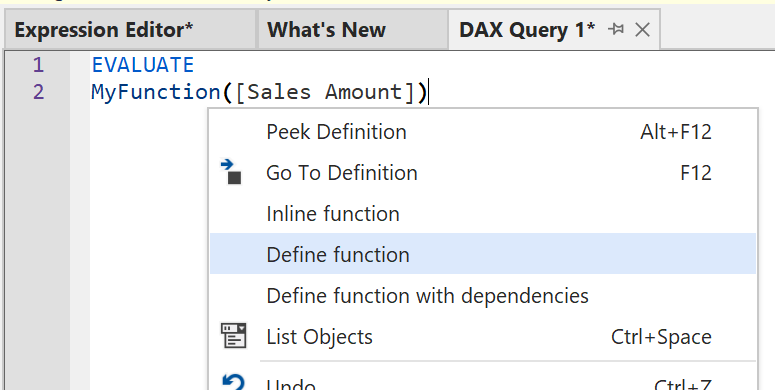
The right-click menu of a DAX UDF call has these commands:
- Peek Definition (Alt+F12): opens a read-only editor with the function definition below the cursor.
- Go To Definition (F12): goes to the function definition in the editor if the current query or script defines it, and to the function in the Functions folder otherwise.
- Inline Function: replaces the call with the function body, with the parameters replaced by the arguments.
- Define Function (DAX scripts and DAX queries only): adds the function definition to the DEFINE section, if it isn't there already.
- Define Function with dependencies (DAX scripts and DAX queries only): also adds the definitions of the DAX UDFs the function calls.
DAX Package Manager
The DAX Package Manager, available in Tabular Editor 3.24.0 and later, finds, installs and manages DAX UDF libraries and supports the DaxLib feed.
System administrators can disable access to the DAX Package Manager by specifying a group policy.
Advanced Features
Formula fix-up
When you rename a DAX UDF, Tabular Editor 3 updates all references to it in the model, as it does for measures and other objects.
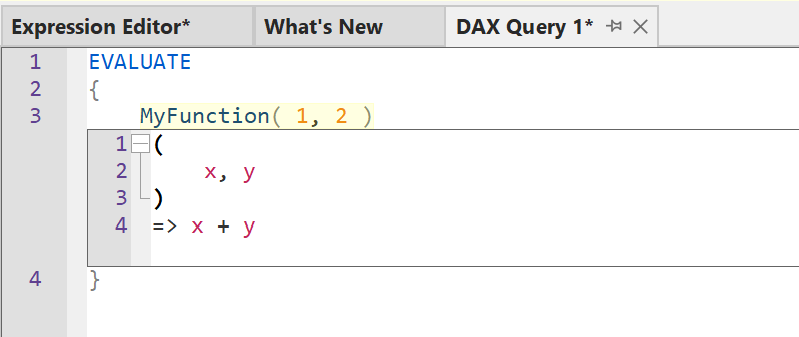
Peek Definition
Peek Definition shows a DAX UDF's definition below the cursor without leaving the current document.
Dependencies View
The DAX Dependencies view (Shift+F12) shows, for a DAX UDF:
- Objects that depend on the function: the measures, columns and other objects that call the function
- Objects the function depends on: the measures, columns and other objects the function references
Batch Rename
Batch Rename (F2) on the right-click menu of the TOM Explorer renames several selected DAX UDFs at once, with search-and-replace patterns and optional regular expressions.
Namespaces
DAX has no namespaces, so give DAX UDFs names that are unambiguous and show where the function comes from, using . as a namespace separator, for example DaxLib.Convert.CelsiusToFahrenheit. The TOM Explorer displays DAX UDFs named this way in a hierarchy. To switch the hierarchy on or off, use Group User-Defined Functions by namespace in the toolbar above the TOM Explorer. The button appears only for models at compatibility level 1702 or higher.
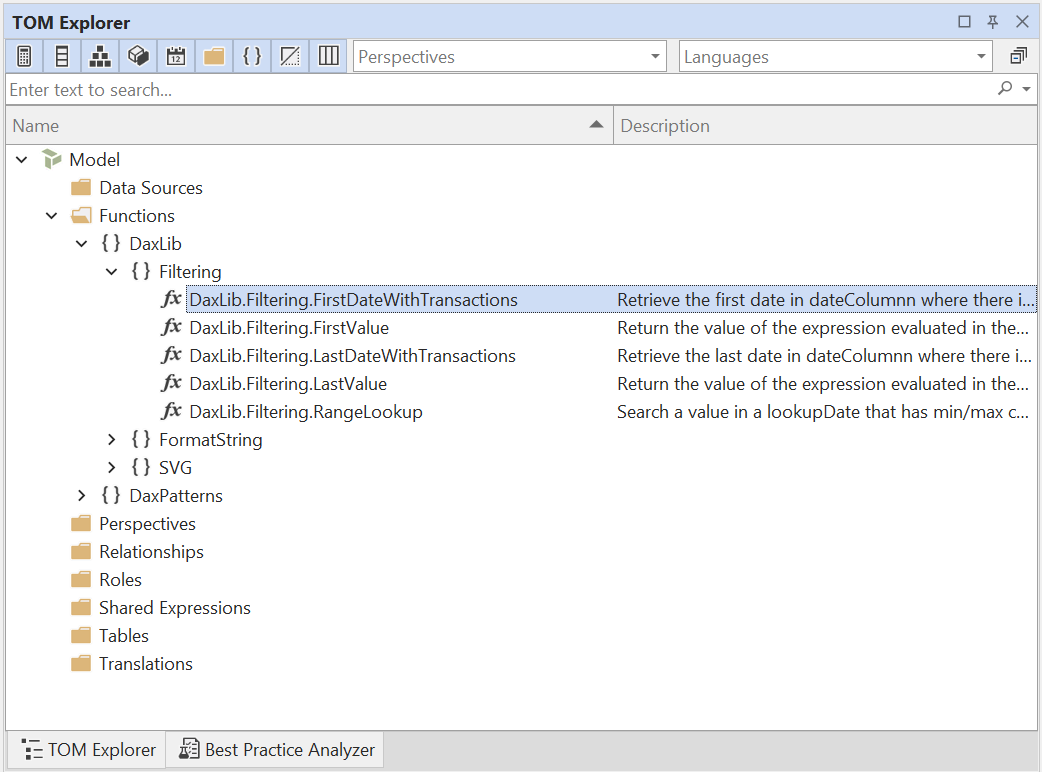
Each DAX UDF also has a Namespace property that sets its place in the TOM Explorer hierarchy without changing its name, similar to display folders for measures. For example, if you batch rename them to remove the namespace from their names, set Namespace to keep them grouped in the TOM Explorer.
Note
The Namespace property doesn't affect DAX code, so to call a DAX UDF, use its full name, including any namespace parts.
DAX UDFs and source control
If you store your model as a folder structure, Tabular Editor can write each DAX UDF to its own file. Without this serialization level, all functions are stored in database.json, and parallel edits to different functions can conflict in that file.
Select the User Defined Functions (UDFs) level under Model > Serialization options.... For a model you save to a folder for the first time, select it under Tools > Preferences > File Formats > Save-to-folder (see Save to folder).
Best Practices
Naming Conventions
- use names that describe the function's purpose
- prefix DAX UDFs with your organization's initials, for example
ACME.CalculateDiscount - use compound names with a separator character (
.or_), for exampleFinance.CalcProfitorMy_CalcProfit. A compound name can't collide with a built-in DAX function that Microsoft adds later. See the built-in BPA rule
Documentation
- add a comment that describes what the function does
- document each parameter's purpose and expected data type
- include usage examples in the comments
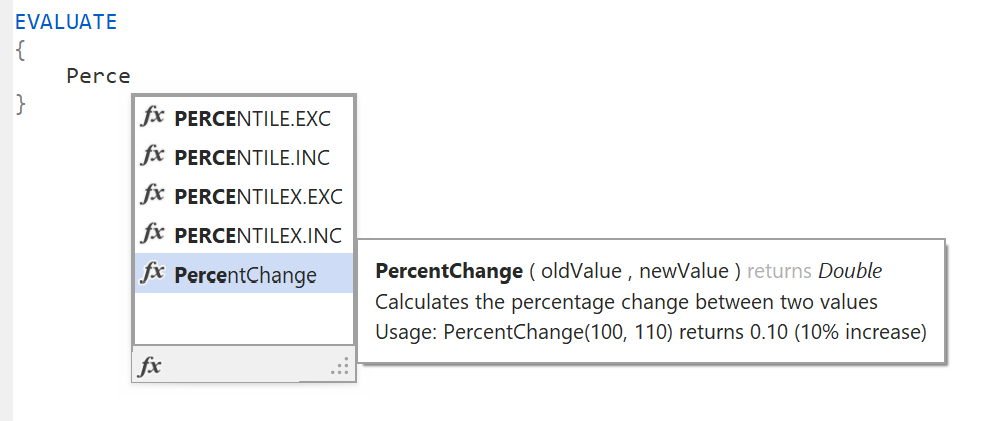
// Calculates the percentage change between two values
// Usage: PercentChange(100, 110) returns 0.10 (10% increase)
(
    oldValue: DOUBLE,    // The original value
    newValue: DOUBLE     // The new value to compare against
)
=> DIVIDE(newValue - oldValue, oldValue)
Tabular Editor 3 shows these comments in autocomplete suggestions and tooltips.
Common Use Cases
Mathematical Operations
// Calculate compound interest
(
    principal: DOUBLE,
    rate: DOUBLE,
    periods: INT64
)
=> principal * POWER(1 + rate, periods)
String Manipulation
// Format a full name from first and last name components
(
    firstName: STRING,
    lastName: STRING
)
=> TRIM(firstName) & " " & TRIM(lastName)
Date Calculations
// Get the fiscal year based on a date (fiscal year starts July 1)
(
    inputDate: DATETIME
)
=> IF(MONTH(inputDate) >= 7, YEAR(inputDate) + 1, YEAR(inputDate))
Business Logic
// Apply tiered discount based on quantity
(
    quantity: INT64
)
=> SWITCH(
    TRUE(),
    quantity >= 100, 0.15,
    quantity >= 50,  0.10,
    quantity >= 25,  0.05,
    0
)
Troubleshooting
Common Issues
Function not appearing in autocomplete
Check the following, in order:
- If the function's definition has a semantic error, such as a missing row context or an invalid
MATCHBY, autocomplete hides the function but still shows its calltip. Fix the error in the function. - Autocomplete offers a DAX UDF only where its return type fits the argument you're completing. The return type is inferred from the function body: one that returns a table isn't offered where a scalar is expected, and the reverse. Exceptions:
- filter arguments, such as the second and later arguments of
CALCULATE, accept either - a function whose body is an untyped
EXPRparameter is offered everywhere
- filter arguments, such as the second and later arguments of
- Visual calculation DAX UDFs appear only in visual calculations, and other DAX UDFs appear only outside them.
- A function isn't offered inside its own definition.
Parameter constraint errors
- review the parameter types you've specified
- check that the arguments match the parameter types
- check the Microsoft documentation for supported constraint types
Function not working after deployment
- check that the target supports DAX UDFs, which the Power BI Service supports from the June 2026 release (see Limitations).
Limitations
- DAX UDFs require compatibility level 1702 or higher. Azure Analysis Services and SQL Server Analysis Services don't support them.
- DAX UDFs can't be recursive (call themselves).
Note
Optional parameters with default expressions arrived with the general availability of DAX UDFs in June 2026. Tabular Editor 3 versions before 3.26.2 show a false error for the default expression syntax.