Sharing macros, BPA rules and preferences across a team
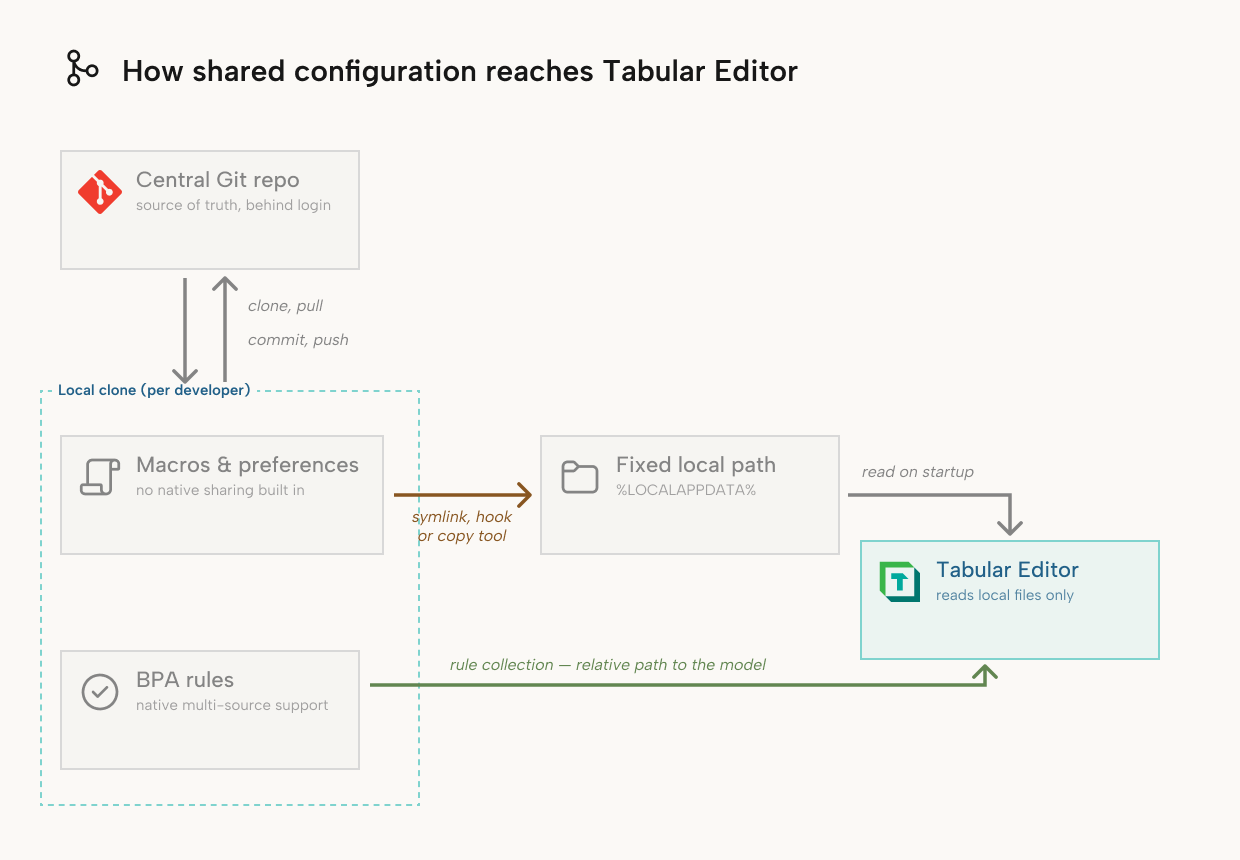
Tabular Editor reads several configuration files from a fixed location on each user's machine: %LOCALAPPDATA%\TabularEditor3\ for Tabular Editor 3, or %LOCALAPPDATA%\TabularEditor\ for Tabular Editor 2. The most important are MacroActions.json (the user's macros), BPARules.json (the user's local Best Practice Analyzer (BPA) rules) and Preferences.json (general application preferences). See Supported file types for a full description of these and the other local setting files.
This page describes how a team, a department or a CI pipeline keeps these fixed-path files in sync with a shared, version-controlled copy.
Note
BPA rules have native support for shared sources, which Sharing BPA rules covers. The rest of this page covers macros and preferences.
Start with a central Git repository
Keep shared macros, and optionally a shared baseline Preferences.json, in one central Git repository and treat it as the source of truth. Whichever mechanism copies the files onto developer machines pulls from that repository, so that:
- changes to a macro go through a pull request, like a change to a semantic model
- the commit history shows who changed which macro and when, and you revert a bad change like any other commit
- new team members get the team's macro library by cloning one repository
- the same repository can hold the team's BPA rule collections (see Sharing BPA rules), which keeps shared standards in one place
Same repo as your semantic model, or a separate repo?
Before you choose a sync mechanism, decide whether the shared macros and BPA rules live in the same repository as your semantic model or in a dedicated repository.
Start with the semantic model's repository, where macros and rules are files alongside the model and versioned together. Under GitHub Flow, a feature branch created from main contains the macros and rules that were current at that moment, with no separate step. A change to a macro is another feature branch and pull request, and the diff shows that it touches only MacroActions.json.
Use a separate, dedicated repository when you have several independent semantic model repositories, for example one per team or department. Without it, every model repository needs its own copy of the shared macros and rules, and you keep those copies in sync by hand.
In the multi-team case, check whether you need a single shared macros repository or a shared baseline with local additions, such as an organization-wide set of macros with a department's own macros on top. BPA rule collections support multiple sources natively (see Sharing BPA rules), and for macros, see Combining multiple macro sources.
If your team maintains a single semantic model repository, use the same-repo approach. If you expect more model repositories within a year, start with a separate repository: moving shared macros out of a model repository later takes more work.
The sync mechanisms below work the same way in both setups. With a dedicated macros repository, they point at a second clone.
Sharing macros
Tabular Editor reads one MacroActions.json file per user from a fixed path, and macros have no equivalent to BPA rule collections. See the Macros view reference for the file structure.
Note
Tabular Editor doesn't download or load macros from a webpage, a GitHub repository, a marketplace or any other remote location. Macros are C# scripts, so any sharing mechanism is one that you or your team set up and run.
Tabular Editor reads and writes only the local copy of MacroActions.json and has no Git integration for it. Each option below moves the file between your Git repository and the fixed local path. They differ in what performs the move, in which direction and on what trigger.
Option A: symbolic link
Replace the file at the fixed path with a symbolic link to the file in your repository. Tabular Editor then reads and writes your working copy of MacroActions.json.
New-Item -ItemType SymbolicLink -Path "$env:LOCALAPPDATA\TabularEditor3\MacroActions.json" -Target "C:\path\to\your\repo\MacroActions.json"
(For Tabular Editor 2, use %LOCALAPPDATA%\TabularEditor\ instead of %LOCALAPPDATA%\TabularEditor3\.)
- The link is two-way: edits in the Tabular Editor UI land in your working copy, ready to review and commit.
- You still run
git pullto get a teammate's changes. - Creating a symbolic link on Windows requires Developer Mode or an elevated prompt, which policy often blocks on managed machines. IT can grant the permission centrally (through device policy or the
SeCreateSymbolicLinkPrivilegeright) when deploying Tabular Editor, and a small script creates the link after a developer clones the repository.
Option B: pre-commit hook
A Git pre-commit hook, checked into the repository, copies MacroActions.json from the repository to %LOCALAPPDATA%\TabularEditor3\ on every commit (%LOCALAPPDATA%\TabularEditor\ for Tabular Editor 2).
- It needs no elevated permissions or Developer Mode. The source path is relative to the repository root and
%LOCALAPPDATA%resolves per user. The hook works wherever a developer clones the repository. - The copy is one-way and runs on commit. A teammate's change reaches you after their pull request merges and you pull
main. If your branch goes a long time without pullingmain, add apost-mergeorpost-checkouthook. - An edit made in the Tabular Editor UI stays local until you copy it back into the repository and commit. If you don't, the hook overwrites it on the next commit.
Option C: a copy-on-apply tool
Dotfiles managers such as chezmoi keep the file in a repository, copy it to its target location with an apply command and copy local edits back with an add command. Nothing writes through automatically.
- Like Option B, it needs no elevated permissions and doesn't depend on a specific clone path. Both directions are explicit commands.
- You learn a third-party tool for a single JSON file. If your team already manages other developer-machine configuration this way (shared VS Code or Git config, for example), macros are one more file in that system.
Note
None of these options is an official mechanism, so pick one and use it for every shared file.
Combining multiple macro sources
Each option above moves a single file, and macros have no native multi-source support. To combine a central set of macros with a department or personal set, write a script that merges the files before Tabular Editor reads MacroActions.json. Keep the script simple enough that any developer on the team can fix it.
Sharing preferences
Preferences.json has the same fixed path as macros and no native multi-source support. Any of the three options above works for it.
Sharing BPA rules
Tabular Editor combines Best Practice Analyzer rules from multiple sources natively:
- Rule collections: a model draws rules from the current model, the local user's
BPARules.json, a machine-wideBPARules.jsonand any additional collections you add. An additional collection is a file on disk, a network share or an HTTP/HTTPS URL. File paths can be relative to the model, which lets the rule file live in the model's repository. Collections have a precedence order, and a rule at the model level overrides a shared central rule. See Adding a rule collection. - Built-in rules (Tabular Editor 3): a versioned set of best-practice rules that ships with the application, is updated with each release and links each rule to a knowledge-base article. They run alongside your custom rules. See Built-in BPA Rules.
A shared rule file in a repository, added as a collection through a relative path, network share or URL, covers most team scenarios. Tabular Editor reads the collection directly, so no symbolic link or hook is needed, and the same-repo or separate-repo decision above has little effect on BPA rules.
Which collection type to use
For most teams, use a relative-path file in the semantic model's Git repository:
- URL: Tabular Editor doesn't allow editing a rule collection loaded from an HTTP/HTTPS URL. Use a URL for rule sets you consume unchanged, such as Microsoft's standard Analysis Services BPA rules. For rules your team edits, you'd maintain the file elsewhere and publish the URL as a read-only mirror.
- Network share: every machine needs access to the same network location. That works for an on-premises or single-office setup, but not for remote developers or cloud-hosted CI/CD agents without your internal network.
- Relative path: the rule file is a normal file in the repository, edited and reviewed like any other. Every machine with the repository cloned, including CI/CD build agents, has the rule file.
Relative paths resolve only when the model is loaded from disk (a Save to Folder model). They don't resolve when Tabular Editor connects directly to an Analysis Services or Power BI instance. Parallel development with Git and Save to Folder loads the model from disk, so this only affects team members who connect directly to a live workspace.
If your team already has a shared network location that every machine can reach, a network share also works.
Summary
| Goal | Approach |
|---|---|
| Decide where shared macros/rules live | Same repo as the semantic model if you maintain one model repo; a separate dedicated repo if you maintain several. See Same repo or a separate repo? |
| Share BPA rules across a team | Relative-path file collection in a Git repository. See Which collection type to use for network share and URL collections |
| Get a maintained baseline rule set with no setup | Built-in BPA Rules (Tabular Editor 3) |
| Share macros or preferences, two-way | Symbolic link (Option A). Needs git pull for a teammate's changes and permission to create symbolic links |
| Share macros or preferences, no elevated permissions | Pre-commit hook (Option B). One-way, syncs on commit |
| Share macros or preferences with explicit commands | A dotfiles manager such as chezmoi (Option C). Best if your team already uses it for other config |
| Combine multiple macro sources (central + department + personal) | A merge script that combines the arrays into the single file Tabular Editor reads |
| Load macros from a location the user doesn't control | Not supported. Macros are executable code |