Optimizing development workflow using Workspace Mode
Workspace Mode
In workspace mode, Tabular Editor 3 connects a model loaded from a file to a workspace database. Workspace mode is available when you create a new model or load the Model.bim or Database.json file of an existing model.
When you save (Ctrl+S), Tabular Editor writes the metadata changes to the file(s) on disk and synchronizes them to the workspace database.
Give each model developer their own workspace database, because a shared one causes conflicts between developers.
Warning
Don't enable Git integration on the Fabric workspace that hosts your Tabular Editor workspace databases. Tabular Editor changes the workspace database through the XMLA endpoint, and these changes cause Git conflicts with the connected branch.
Note
For models at compatibility level 1200, 1400 or 1500, host the workspace database on a local instance of Analysis Services, such as the one included with SQL Server Developer Edition 2019.
Creating a new model
When you create a new model in Tabular Editor, Use workspace database is selected by default:
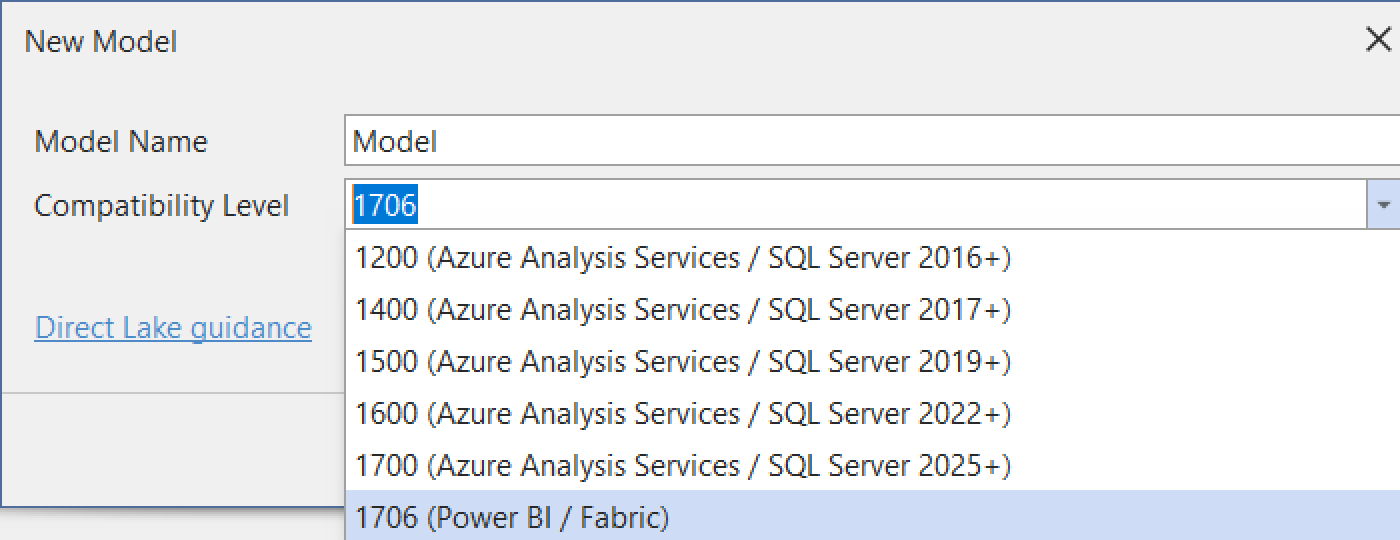
With the option selected, a prompt to connect to an instance of Analysis Services appears after you click OK. Tabular Editor deploys the workspace database to this instance.
Important
If you deploy your workspace database to the Power BI Service XMLA endpoint, select compatibility level 1706 (Power BI / Fabric) in the dialog above.
After you enter the server details and, optionally, credentials, a list of the databases on the server appears. For a Power BI workspace, the list shows the semantic models deployed to the workspace:
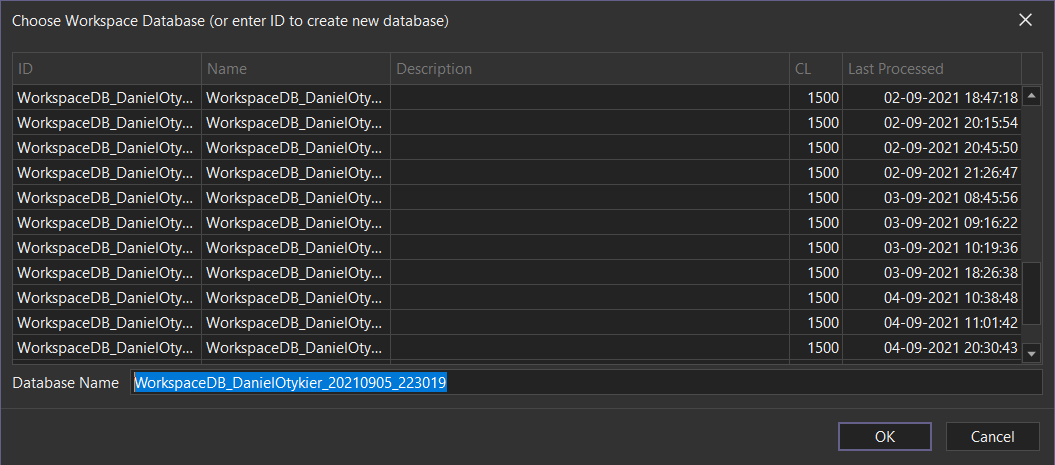
Tabular Editor suggests a unique name for the workspace database, based on your Windows user name and the current date and time, which you can change.
Click OK to create the model and deploy and connect the workspace database. Then press Ctrl+S to save the model as a Model.bim file, or select File > Save to Folder... to store the metadata in a version control system such as Git.
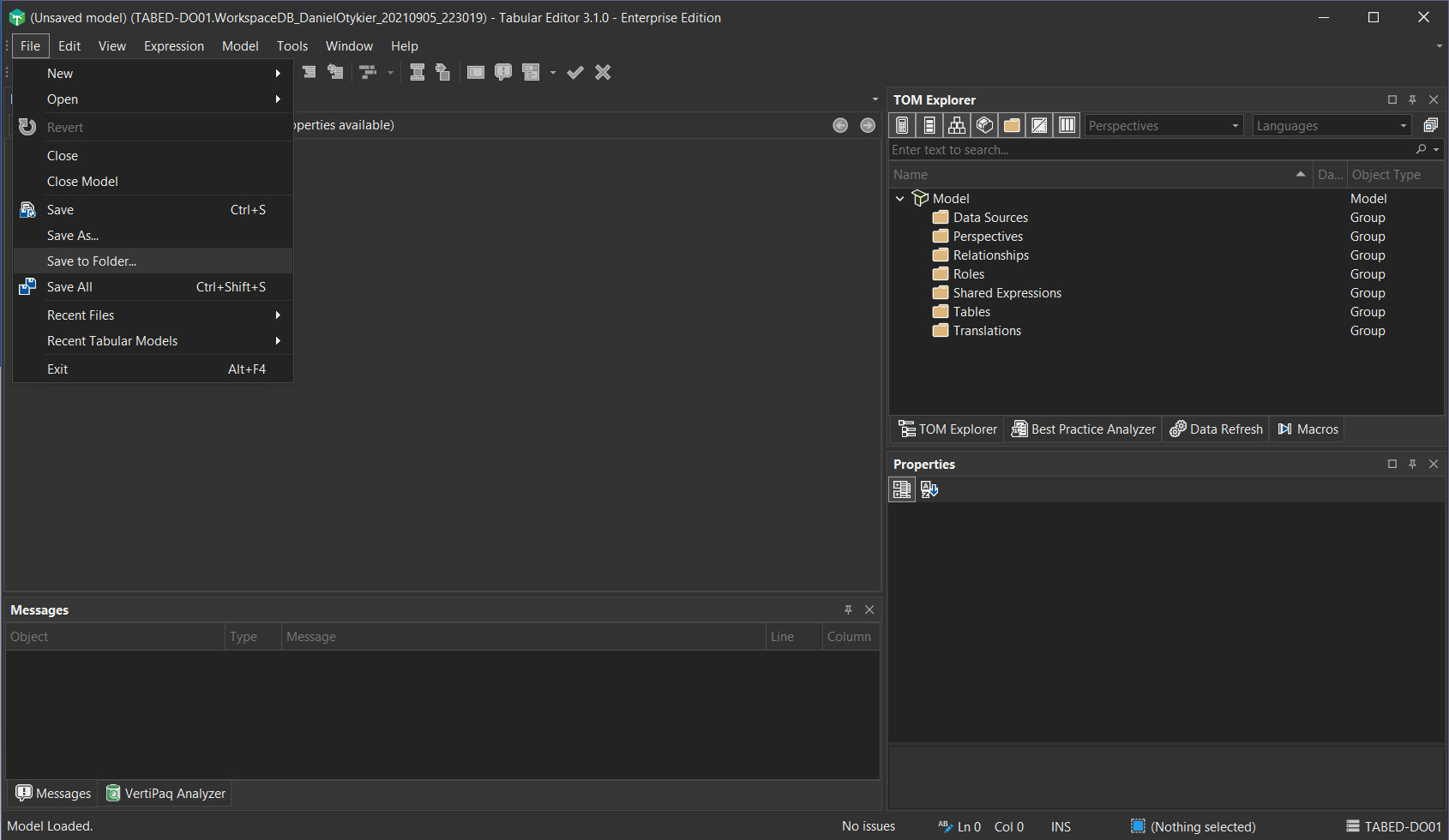
You can now define data sources and add tables to the model. Every save updates both the workspace database and the file or folder you chose.
Tabular Editor stores the workspace database details for the model in a Tabular Model User Options (.tmuo) file next to the model metadata file. See User options (.tmuo) file.
Opening a Model.bim or Database.json file
When you open an existing Model.bim or Database.json file, a prompt asks whether to connect a workspace database to it.
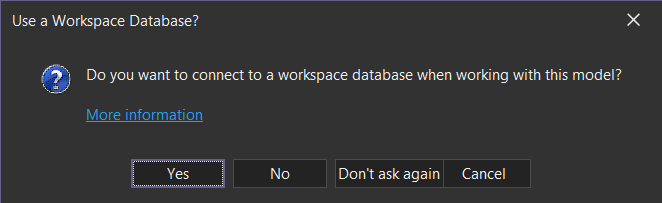
The options are:
- Yes: connect to an instance of Analysis Services and choose an existing workspace database or create one. Tabular Editor deploys the file's metadata to the selected workspace database, and connects to the same database the next time you load the file.
- No: load the metadata offline, with no connection to Analysis Services.
- Don't ask again: load offline, and don't show the prompt again for this file.
- Cancel: don't load the file.
Tabular Editor stores the choice, and the workspace server and database, in the Tabular Model User Options (.tmuo) file.
Warning
Tabular Editor 3 deploys the loaded model metadata to the workspace database you choose. Never use a production database as a workspace database. Use a separate Analysis Services instance or Power BI workspace for workspace databases.
Advantages of workspace mode
In workspace mode, Tabular Editor stays connected to an instance of Analysis Services, which enables the connected features of Tabular Editor 3. Each save (Ctrl+S) also deploys your changes to the instance for testing. Opening a model directly from Analysis Services works the same way, except that workspace mode also saves the metadata to disk.
Note
While a refresh operation is in progress, Tabular Editor can't synchronize the Analysis Services instance, because refresh operations block other write operations. Saving during a refresh still writes the model metadata to disk.
Disable Workspace Mode for a Model
You can disable workspace mode for a model permanently or for the current session, and edit the model file offline.
Permanently disable Workspace Mode
In File Explorer, locate the model's
.tmuofile next to your.bim,.tmdlor.jsonfile.Delete the
.tmuofile, or open it in a text editor and set:{ "UseWorkspaceDatabase": false }Open the model from the
.bim,.tmdlor.jsonfile.
Tabular Editor loads the model offline from then on.
Disable Workspace Mode for the current session only
- In the Open Semantic Model dialog, select Load without workspace database.
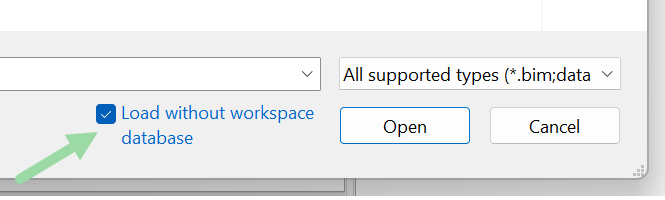
The model loads offline for this session, and workspace mode is enabled again the next time you open it.