Improve code quality with the Best Practice Analyzer
The Best Practice Analyzer (BPA) scans the Tabular Object Model (TOM) of the loaded model in the background for objects that violate the best practice rules you define. TOM has many object types and properties, and the right value for a property often depends on the model design. BPA rules check that each property has the value your conventions require.
Use Best Practice Analyzer rules to check:
- DAX expressions: warn when certain DAX functions or constructs are used.
- Formatting: require format strings, descriptions and similar properties.
- Naming conventions: check that types of objects, such as key columns or hidden columns, follow name patterns.
- Performance: check performance-related aspects of the model, for example the number of calculated columns.
Rules have access to the full model metadata and to VertiPaq Analyzer statistics.
Note
Tabular Editor 3 includes built-in Best Practice Analyzer rules, enabled by default. They appear in the Best Practice Analyzer view alongside your custom rules and in the (Built-in rules) collection under Tools > Manage BPA Rules....
Managing Best Practice Rules
Open Tools > Manage BPA Rules... to add, remove or modify the rules that apply to your model.
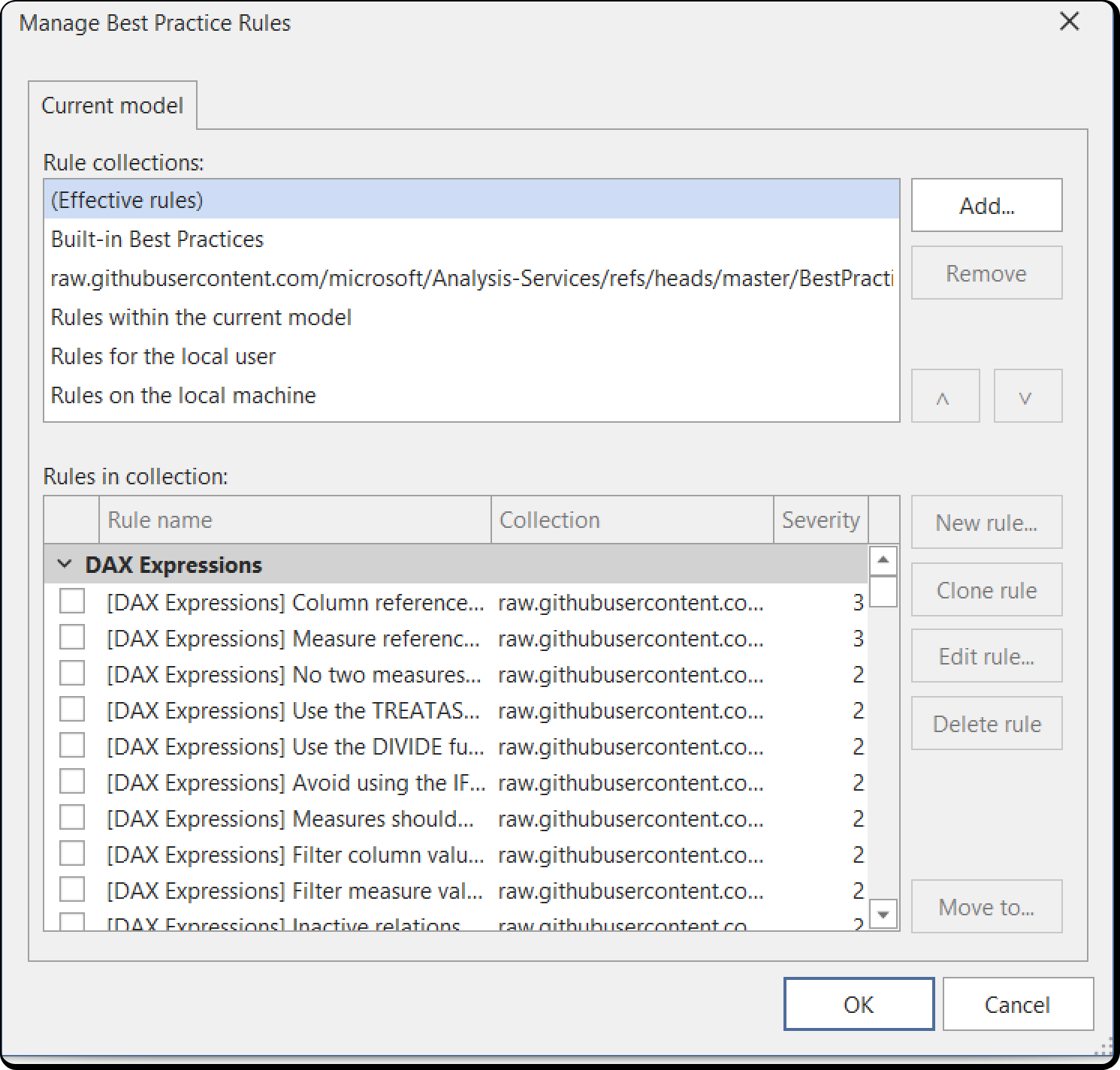
The top list shows the loaded rule collections, and the bottom list shows the rules in the collection you select. When a model is loaded, these collections are listed:
- Rules within the current model: rules defined in the current model, stored as an annotation on the Model object.
- Rules for the local user: rules stored in
%LocalAppData%\TabularEditor3\BPARules.json. They apply to every model the current Windows user loads in Tabular Editor. - Rules on the local machine: rules stored in
%ProgramData%\TabularEditor\BPARules.json. They apply to every model loaded in Tabular Editor on the machine.
If a rule with the same ID exists in more than one collection, the collection higher in the list takes precedence. A rule defined in the model overrides a rule with the same ID on the local machine, so you can adjust a shared rule to model-specific conventions.
The (Effective rules) collection at the top of the list shows the rules that apply to the loaded model after precedence is resolved. The lower list shows which collection each rule belongs to. A rule's name is struck out if a rule with the same ID exists in a collection of higher precedence:
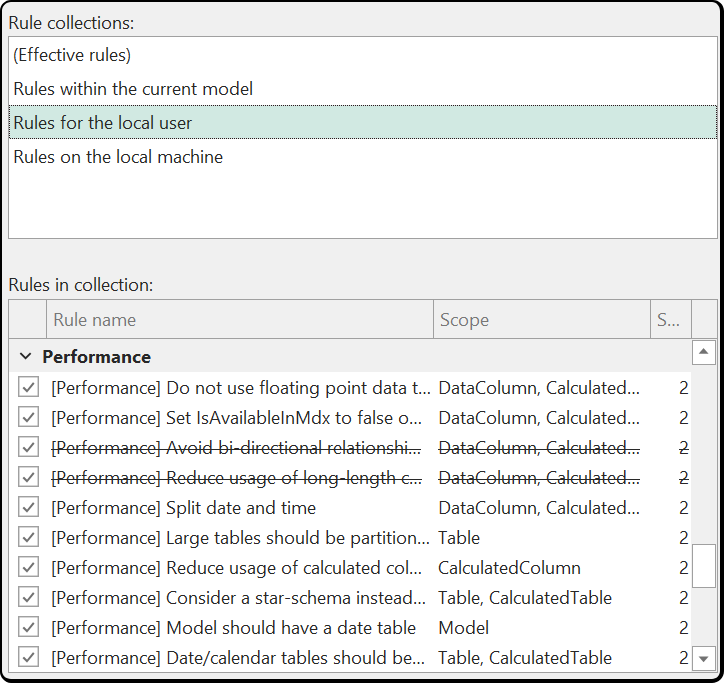
Adding additional collections
You can add a rule file, for example one on a network share, to the current model as a rule collection. If you have write access to the file, you can add, modify and remove its rules. Collections added this way take precedence over the rules defined in the model. If you add several, move them up and down to set their precedence.
Click Add... to add a rule collection to the model:
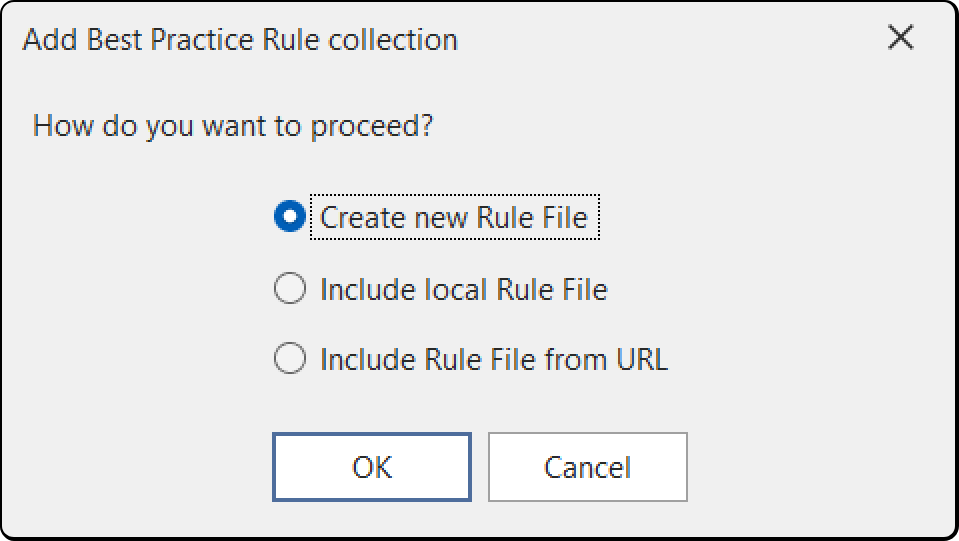
- Create new Rule File: creates an empty .json file at the location you specify. The file dialog has an option for a relative file path, which lets you store the rule file in the same repository as the model. A relative reference works only when the model is loaded from disk. A model loaded from an Analysis Services instance has no working directory.
- Include local Rule File: includes an existing .json rule file. You can use a relative path if the file is on the same drive as the model metadata. A file on a network share or another drive requires an absolute path.
- Include Rule File from URL: includes the rules returned by an HTTP or HTTPS URL, for example the standard BPA rules from the BestPracticeRules GitHub site. Collections added from a URL are read-only.
Modifying rules within a collection
The lower part of the dialog adds, edits, clones and deletes rules in the selected collection if you have write access to its location. Move to... moves or copies the selected rule to another collection.
Adding rules
Click New rule... to open the Best Practice Rule editor:
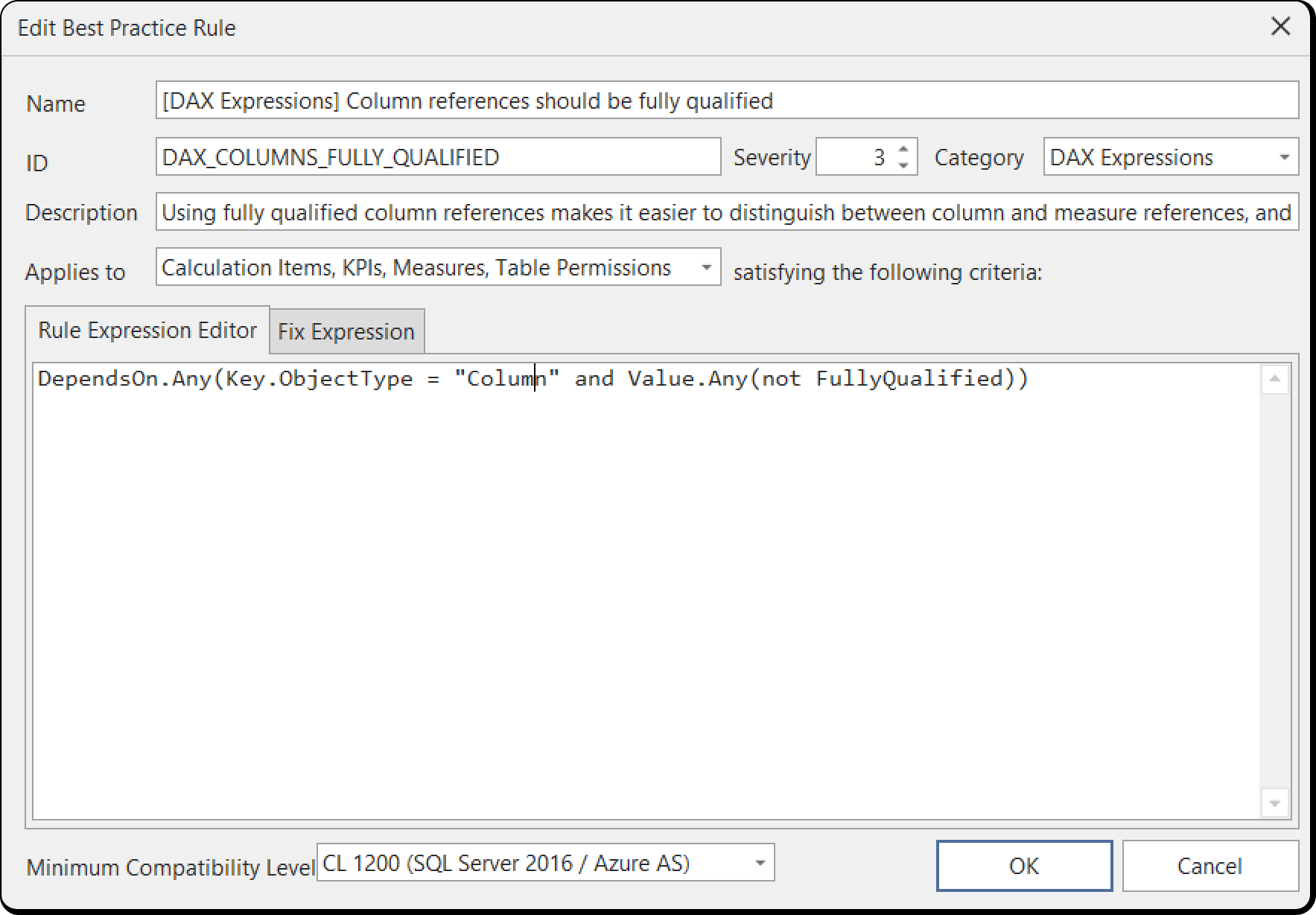
A rule has these properties:
- Name: the name of the rule shown in Tabular Editor.
- ID: an internal ID, unique within a rule collection. If rules in different collections share an ID, only the rule in the collection with the highest precedence applies.
- Severity: not used in the Tabular Editor UI. When you run a Best Practice analysis from the command line, the number sets how severe a violation is:
- 1 = information only
- 2 = warning
- 3 (or above) = error
- Category: groups related rules.
- Description (optional): a description of the rule, shown as a tooltip in the Best Practice Analyzer view. The description accepts these placeholders:
%object%returns a fully qualified DAX reference (if applicable) to the current object%objectname%returns only the name of the current object%objecttype%returns the type of the current object
- Applies to: the object types the rule checks.
- Expression: a Dynamic LINQ expression that evaluates to
truefor the objects, among the types selected in Applies to, that violate the rule. The expression can use the TOM properties of the selected object types and a wide range of standard .NET methods and properties. - Minimum compatibility level: the lowest compatibility level of models the rule applies to. Some TOM properties don't exist at every compatibility level.
A rule collection on disk stores these properties as JSON. You can also add, edit and delete rules in the JSON file directly. In the file, you can set a rule's FixExpression property: a string that generates a C# script that fixes the violation.
Using the Best Practice Analyzer view
The Best Practice Analyzer view lists rule violations, and the status bar at the bottom of the main window shows their count. Open the view with View > Best Practice Analyzer or the # BP issues button in the status bar.
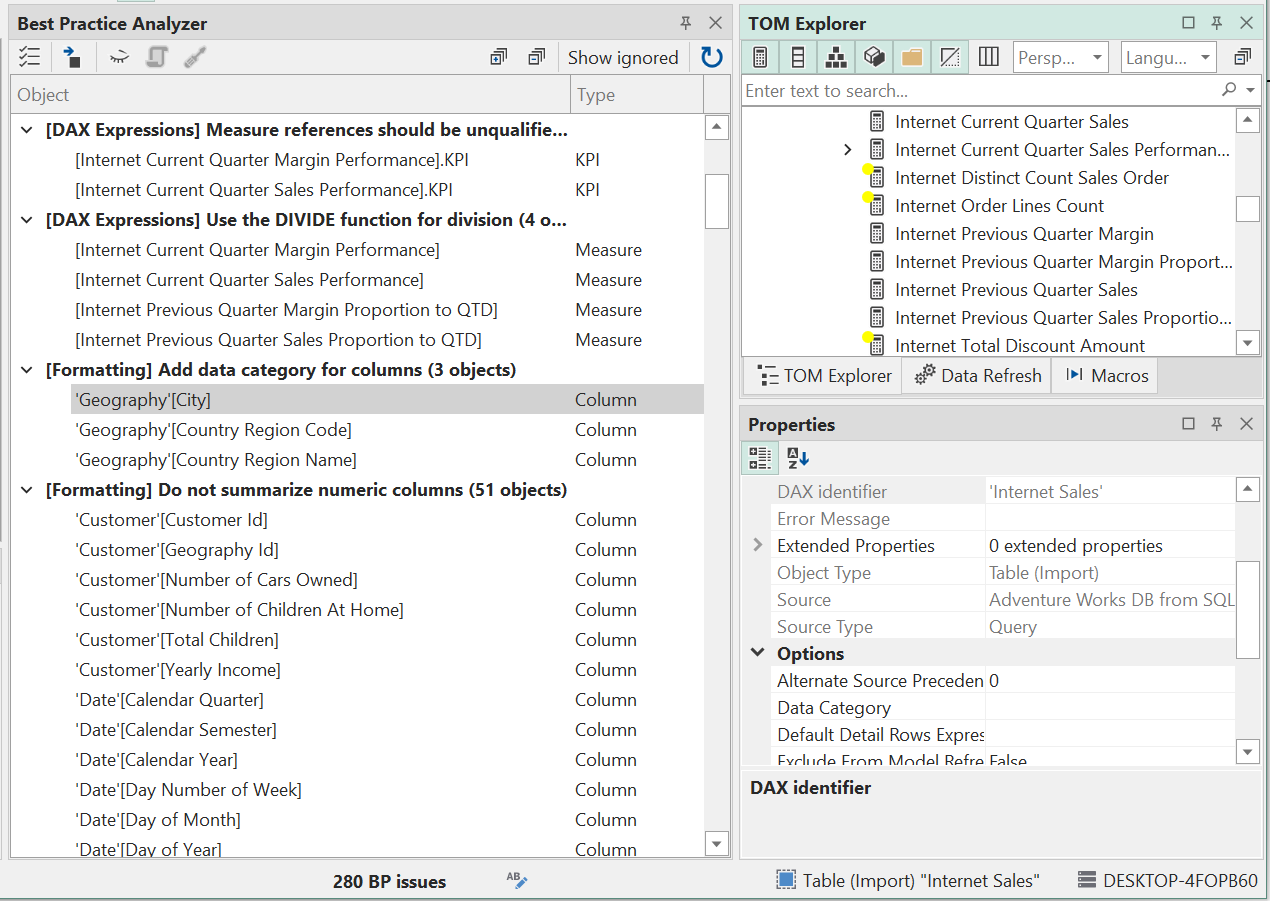
The view lists each rule that has violating objects, with the objects below it. Double-click an object to select it in the TOM Explorer.
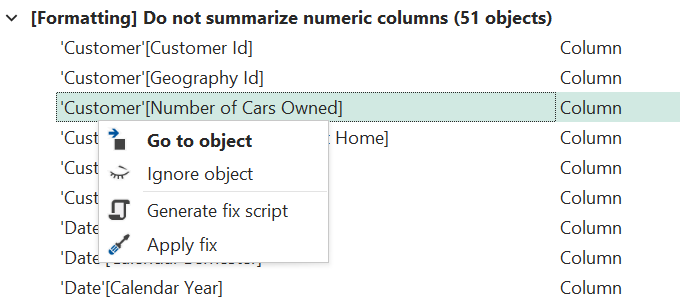
Right-click an object for these options:
- Go to object: selects the object in the TOM Explorer, the same as double-clicking it.
- Ignore object: adds an annotation to the object that makes the Best Practice Analyzer skip this rule for it. The annotation stores the rule ID.
- Generate fix script: creates a C# script from the
FixExpressionof the selected rules. Available only if the rule has aFixExpression. - Apply fix: runs the
FixExpressionof the selected rules. Available only if the rule has aFixExpression.
Note
Hold down Shift or Ctrl to select several objects in the Best Practice Analyzer view.
The toolbar at the top of the view has the same options, plus buttons to expand or collapse all items, show ignored rules and objects, and refresh the scan manually.
Disabling the Best Practice Analyzer
Turn off the background scan if some rules take a long time to evaluate or the model is very large: clear Scan for Best Practice violations in the background in the Best Practice Analyzer section of Tools > Preferences > Tabular Editor > Miscellaneous. With background scans off, click Refresh in the Best Practice Analyzer view to scan.