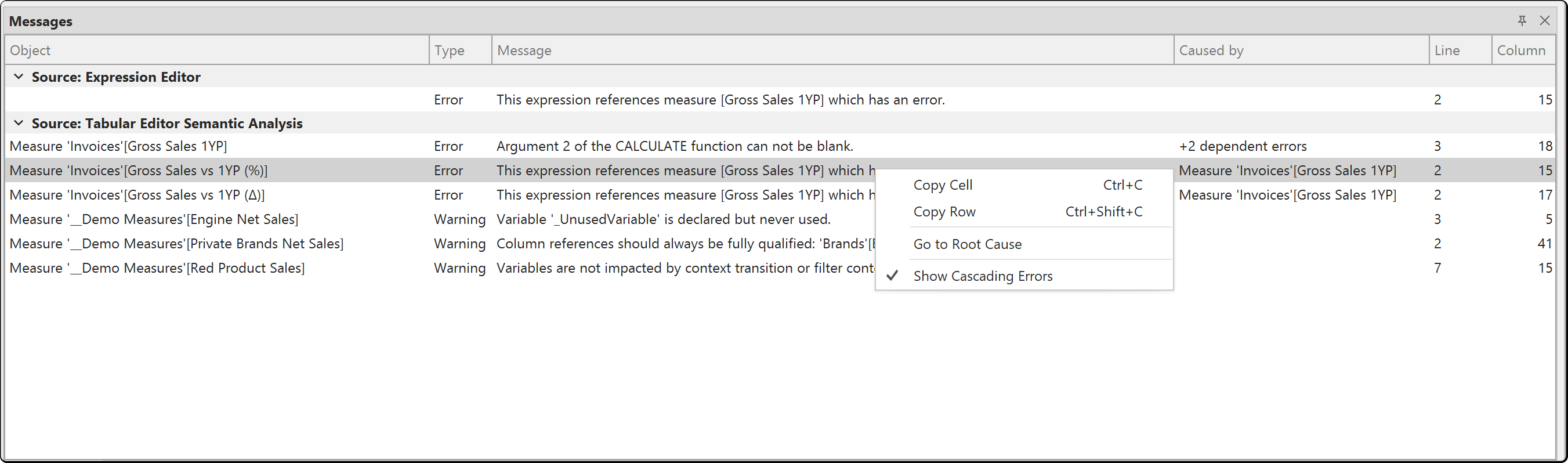
Messages view
The Messages view in Tabular Editor 3 is a tool window that displays various types of messages related to the current dataset.
Tip
You can double-click on a message to jump to the source of the error in the model tree or script editor.
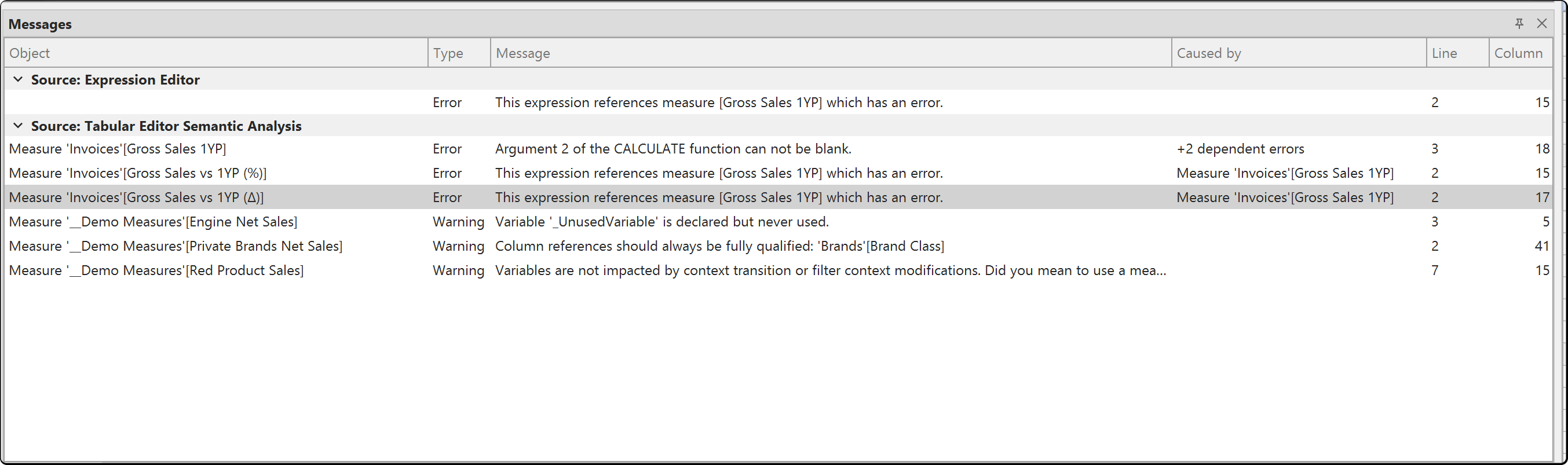
Messages are grouped by Source, such as the semantic analyzer, the expression editor or Analysis Services. Each row has these columns:
| Column | Shows |
|---|---|
| Object | The object or document the message belongs to. |
| Type | The severity of the message: error, warning or information. |
| Message | The message text. |
| Caused by | For a cascading error, the object whose error causes it. For a root error, the number of dependent errors it causes. |
| Line and Column | The position of the message in the expression or document. |
Errors are expressions or structures that Analysis Services rejects, such as an invalid expression in a calculation item or a circular dependency. Warnings flag expressions that work but don't follow recommended practice, such as fully qualified measure references.
Cascading errors and root causes
When an expression has an error, every expression that references it also gets an error, such as a measure that fails only because a measure it references fails. These are cascading errors, and the error they trace back to is the root error.
The Caused by column shows a different value for each kind of error:
- on a cascading error, it names the object with the root error, followed by +N when the error traces back to more than one root error
- on a root error, it shows +N dependent errors, counting the errors it causes directly and indirectly
To work with cascading errors, right-click a row in the Messages view:
- Go to Root Cause opens the root error in the expression editor with the error highlighted. The command appears only on cascading errors.
- Show Cascading Errors shows or hides the cascading errors. Clear it to list only the root errors you need to fix. The setting is on by default and is saved between sessions.
An object with an error of its own and a reference to a broken object shows two rows: a root error and a cascading error. Analysis Services errors and errors in DAX queries, DAX scripts and Pivot Grids are never cascading.
Copying Messages
The message view allows for copying out the error message using Ctrl+C.
From Tabular Editor 3.23.0 Ctrl+C copies the selected cell by default. Use Ctrl+Shift+C (or Copy Row in right-click menu) for row-level copy.
Tip
Right-click a cell to choose Copy Cell or Copy Row. The same menu has Go to Root Cause and Show Cascading Errors.