Unsaved change indicators
Tabular Editor 3 marks objects and properties that differ from the last saved version of the model. This includes changes from C# scripts, macros and the AI Assistant. A mark clears when you save, revert or undo the change.
The indicators appear in two places:
- In the TOM Explorer, changed objects get a colored row and an icon badge: orange (edited), green (added) and red (deleted). These are the colors of the model comparison view shown when deploying.
- In the Properties view, changed properties get a light orange row.
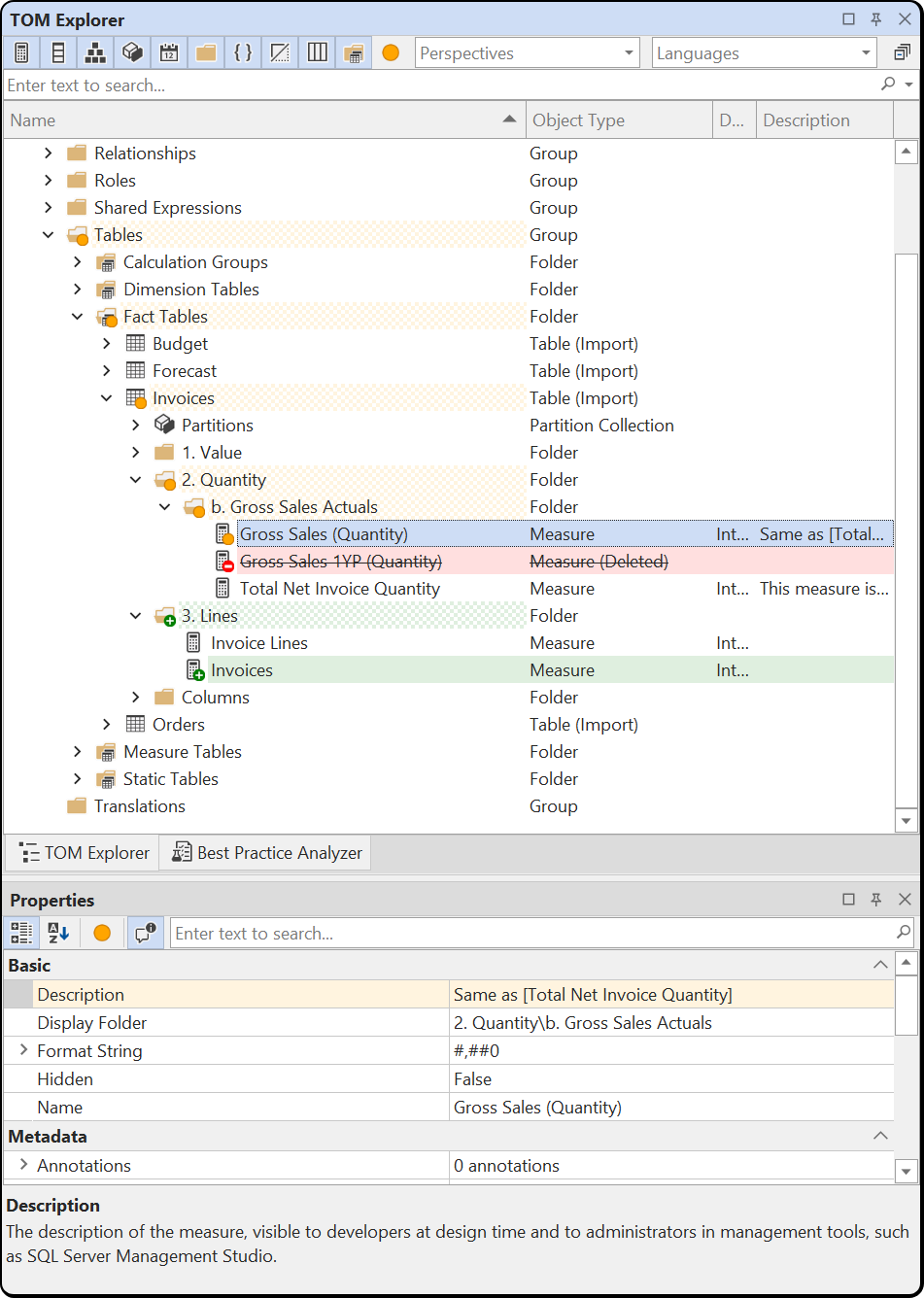
Both views have a Show changes toolbar button and a right-click Revert command.
Note
The indicators track changes relative to the source the model was loaded from or last saved to. Deploying the model to a different database doesn't clear them.
Change indicators in the TOM Explorer
Each object in the tree is marked according to its change since the last save:
- Edited objects get a light orange row and an orange dot badge. This covers any modified property, including changes to a sub-object that has no node in the tree, such as a table's refresh policy or a column's
AlternateOfsettings. - Added objects get a light green row and a green + badge. A new table and all its new columns are green. Editing an added object doesn't change it from green to orange.
- Deleted objects get a light red row, a red − badge and a struck-through name. See Deleted objects.
Tables, display folders, table groups and the Model node get a hatched fill when something beneath them has changed. Their icon badge is green when everything changed beneath them is an addition, and orange otherwise.
Within a selection, the selection highlight takes precedence over the row color and the icon badge still marks changed objects. Error and warning badges take precedence over the change badge.
Tip
If green and red rows are hard to tell apart, select Color blindness mode in the Accessibility group under Tools > Preferences > Tabular Editor > User Interface. Added objects are then teal instead of green, both here and in the model comparison view.
Show changes
The Show changes button on the TOM Explorer toolbar filters the tree to objects with unsaved changes, plus the tables, folders and groups that contain them. While the filter is active, the view title reads TOM Explorer (Changed).
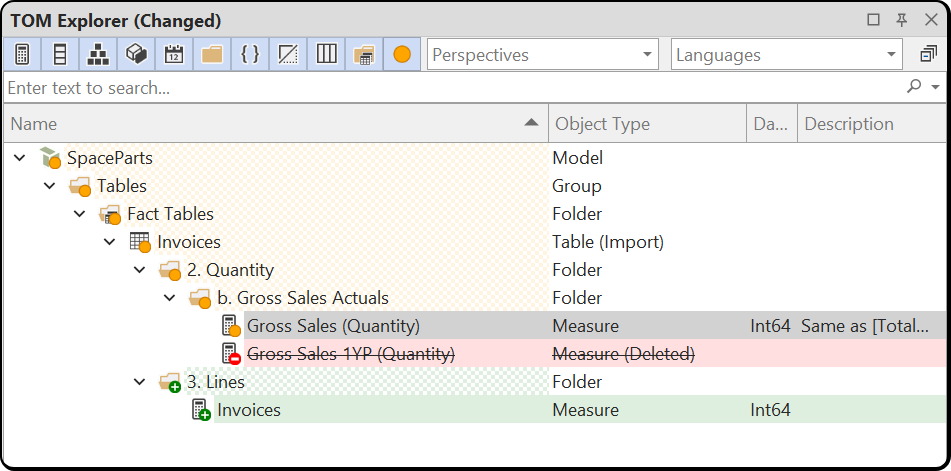
The filter combines with the other toolbar toggles and the search box. For example, hiding columns with Ctrl+2 also hides changed columns from the filtered view.
Change indicators in the Properties view
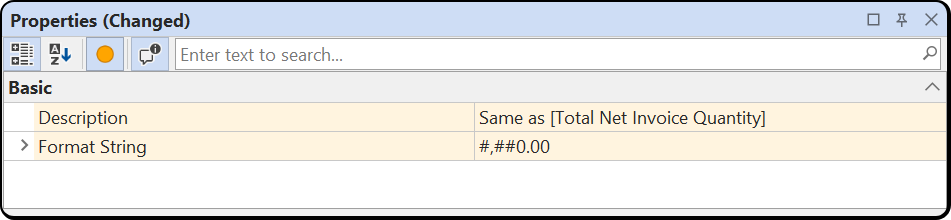
When you select a changed object, the changed properties get the same light orange row. A collapsed row that holds a sub-object, such as a measure's KPI row or a table's Refresh Policy row, is marked when anything inside the sub-object has changed. For indexed rows such as Annotations, only the changed annotation is marked. When several objects are selected, a property row is marked if any of the selected objects changed that property.
The Show changes button on the Properties view toolbar hides unchanged rows. While the filter is active, the view title reads Properties (Changed).
Reverting changes
File > Reload from disk discards all unsaved changes and reloads the model from its source. For a model opened from a server, the command is File > Reload from server. Revert undoes individual changes and leaves all other unsaved changes in place.
A revert works like entering the old value or recreating the deleted object by hand: Tabular Editor updates DAX references and dependent objects, and adds the revert to the undo stack as one step. To undo a revert, use Edit > Undo (Ctrl+Z).
Reverting a single property
Right-click a marked row in the Properties view and choose Revert to restore its saved value. The object's other unsaved changes stay in place.
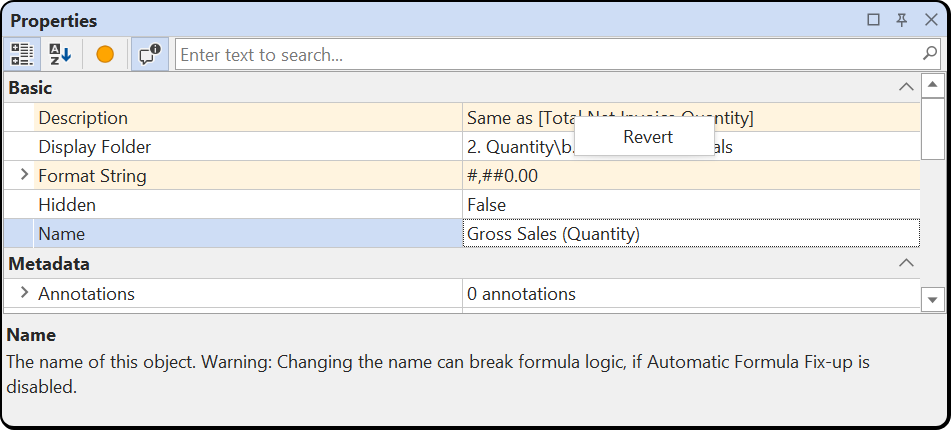
Revert is enabled only on rows with unsaved changes. With several objects selected, Revert on a merged row reverts the property on every selected object that changed it, as one undo step. Revert on a container row such as Annotations reverts all its annotations: edited annotations return to their saved values, added annotations are removed and deleted annotations are restored.
Reverting an object or a branch of the model
Right-click a marked object in the TOM Explorer and choose Revert to return the object and everything beneath it to its last saved state. Revert is also available on tables, display folders, table groups and the Model node when something beneath them has changed. Revert on the Model node discards all unsaved changes in the model, as one undo step.
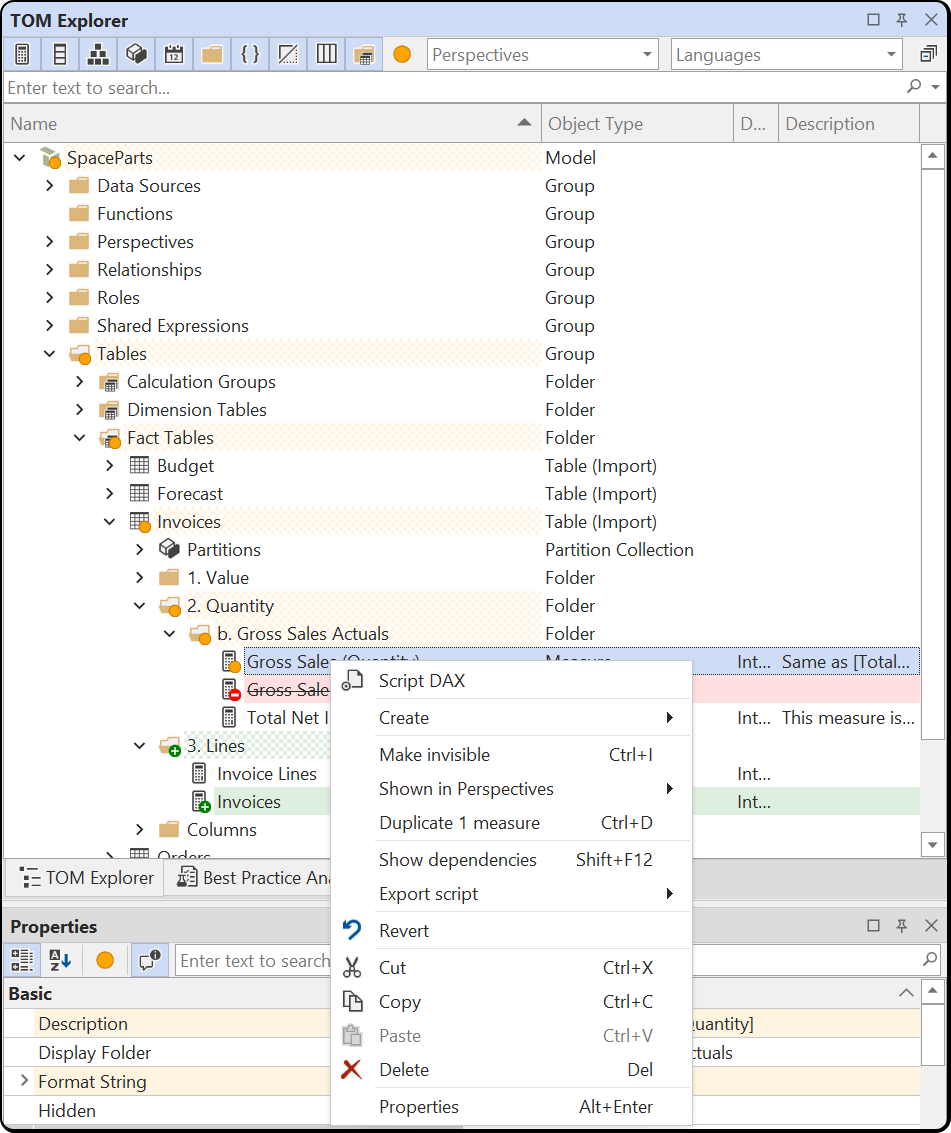
When you revert an object or a branch:
- Edited properties return to their saved values.
- Objects added since the last save are removed.
- Objects deleted since the last save are restored as saved, including a deleted measure's KPI, or a deleted column's hierarchy levels and relationships.
- Objects elsewhere in the model keep their unsaved changes.
If part of a revert fails, a Revert incomplete message lists the failures and Tabular Editor applies the rest. For example, a deleted object can't be restored if another object now uses its name and can't be removed.
Deleted objects
Deleting an object doesn't remove it from the TOM Explorer. Until you save the model, the object stays in its place with a struck-through name, a light red row and a red − badge. When the info columns are shown, the Object Type column reads, for example, Measure (Deleted).
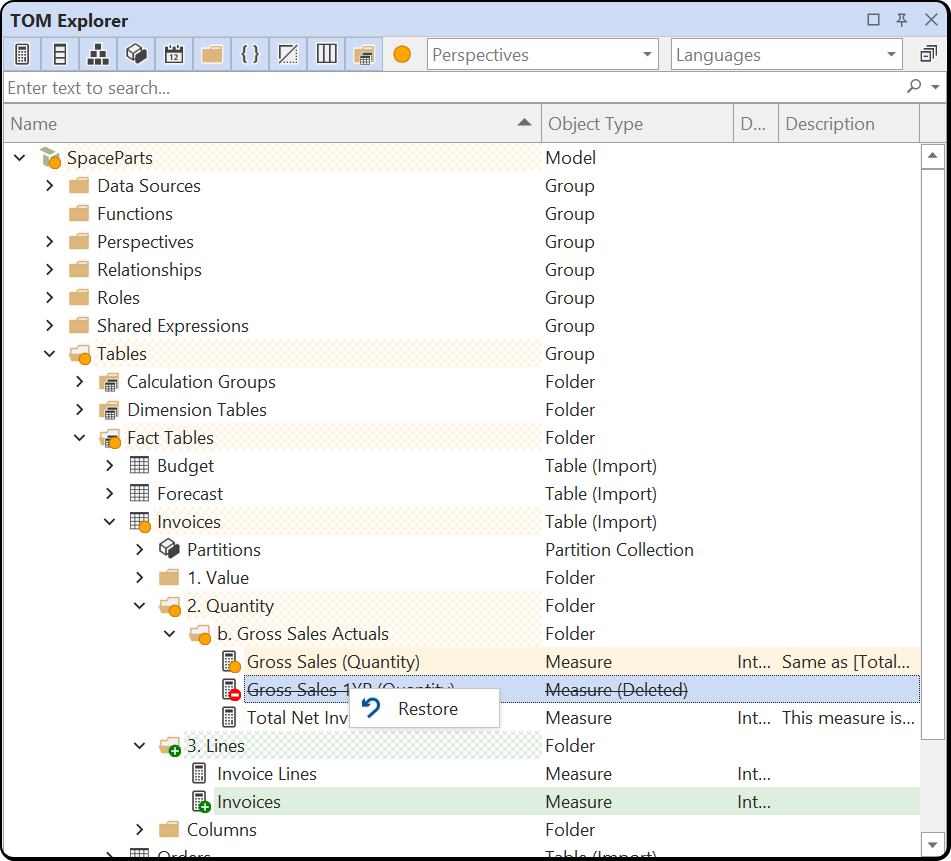
Right-click a deleted object and choose Restore to restore it as it was when you deleted it. If the object had unsaved edits before you deleted it, the edits are restored too and stay marked, and you can revert them separately. To restore several deleted objects in one step, select them all and choose Restore.
You can't edit, rename, drag or expand a deleted object, and it's never a drop or paste target. Selecting a deleted object doesn't select a model object, so the Properties view shows nothing and the right-click menu has only Restore. A selection that mixes deleted and live objects has neither Restore nor the normal object commands.
C# scripts access the selected deleted objects through Selected.Deleted, as described in Scripting.
Gathering deleted objects under one node
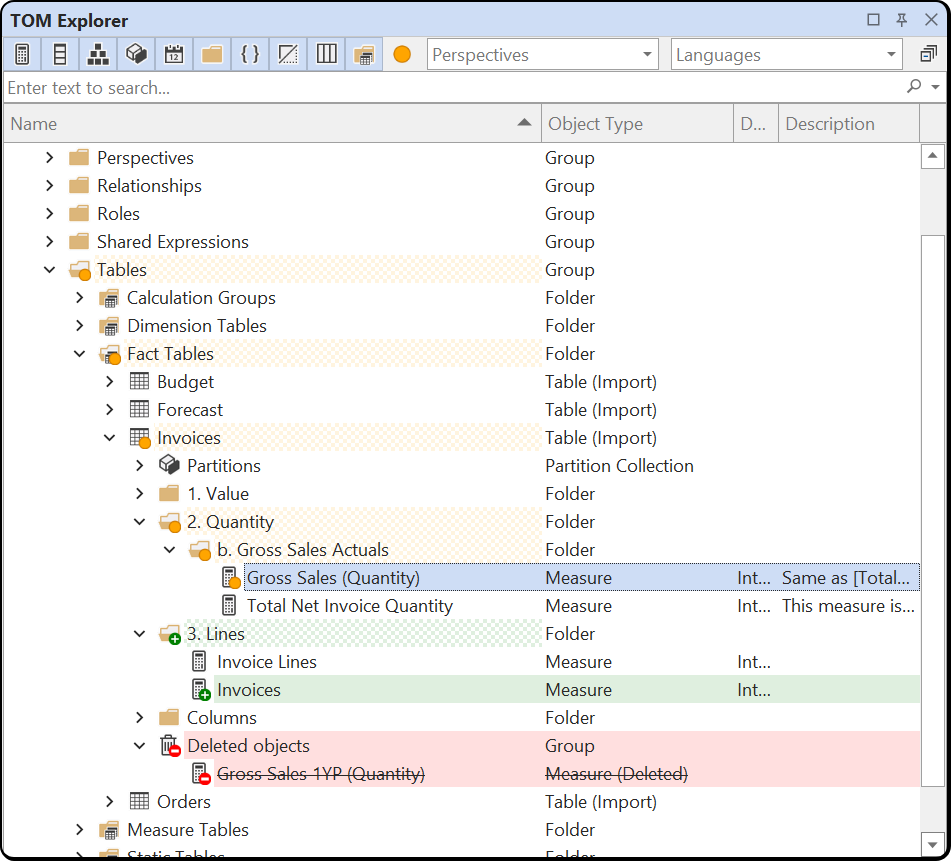
If you select Gather deleted objects under a "Deleted objects" node in the Unsaved changes section under Tools > Preferences > Tabular Editor > TOM Explorer, the deleted objects of a table, hierarchy, role or table group are listed under one Deleted objects node at the end of their container, whichever display folders they were in. The node has a red row and a deleted badge, and the objects beneath it are struck through. Right-click the node and choose Restore to restore everything beneath it in one step.
Keeping deleted objects across saves
By default, deleted objects stay visible until you save. To change that, set the Keep deleted objects visible preference to one of its two other options:
- Never: The TOM Explorer hides deleted objects immediately. To restore them, use Revert on their container, or Edit > Undo.
- Until the model is closed: Deleted objects stay visible and restorable for the whole editing session, including across saves, while their deletion is still on the undo stack. Restoring an object deleted before the last save creates it again, and it's marked as added. An object you created and deleted in the same session appears only if you edited it or saved the model while it existed.
When indicators clear
A mark reflects the current difference from the last saved state. Saving the model to a file, a folder or a database clears every mark at once. A mark also clears when you revert the change, when you undo back to the point of the last save, or when you set a property back to its saved value by hand. If you undo past the last save, the undone objects are marked as changed, and redoing a change restores its mark.
Preferences
The indicator settings are in the Unsaved changes section under Tools > Preferences > Tabular Editor > TOM Explorer:
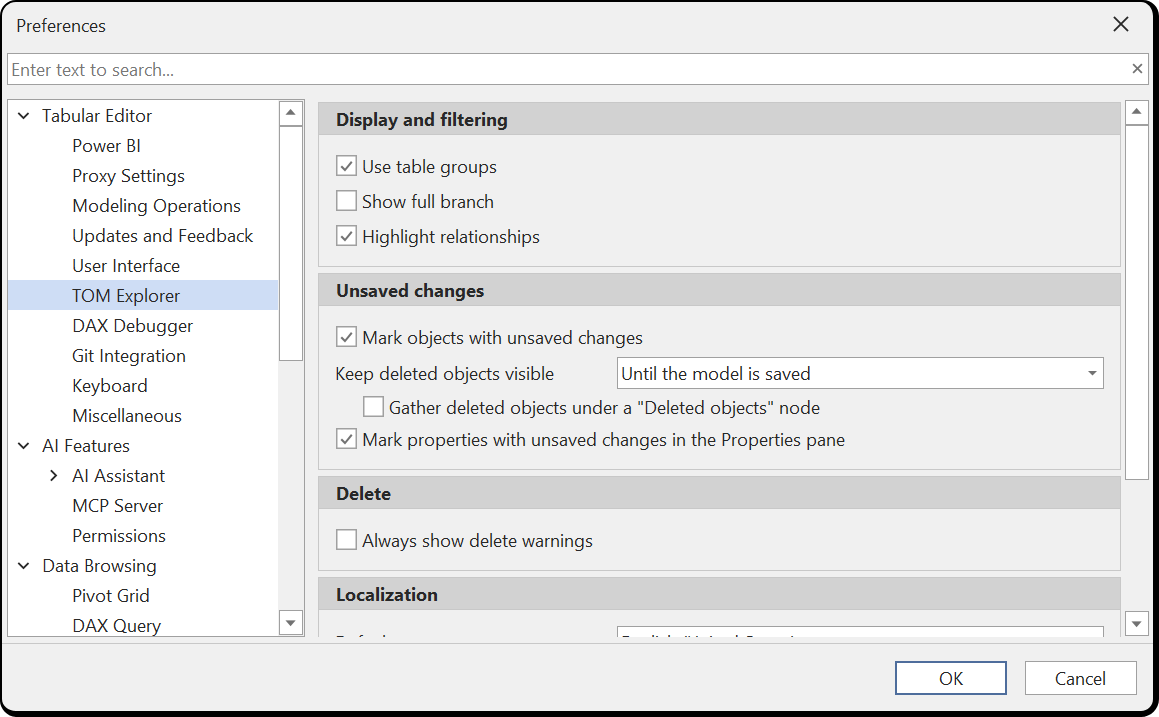
- Mark objects with unsaved changes (enabled): Colors the rows and badges the icons of added, edited and deleted objects in the TOM Explorer, and hatches their containers. Doesn't affect deleted-object visibility or Show changes.
- Keep deleted objects visible (Until the model is saved): How long deleted objects stay in the TOM Explorer. See Keeping deleted objects across saves.
- Gather deleted objects under a "Deleted objects" node (disabled): Lists a container's deleted objects under one node. See Gathering deleted objects under one node.
- Mark properties with unsaved changes in the Properties pane (enabled): Colors the rows of changed properties in the Properties view. Doesn't affect Show changes in the Properties view.
See Controlling preferences for the other settings on this page.
Scripting
C# scripts and macros can read the same change information and run the same revert operations through these members, which every model object has:
HasUnsavedChangesreturnstruewhen the object, or anything beneath it, differs from the last saved state. On theModelobject, it returns whether the model has any unsaved changes.Revert()reverts the object and its children as one undo step. The method also exists on collections such asSelected.Measures, and onModelfor the whole model. If part of the revert fails, it throws an exception that lists the parts it couldn't revert.Revert("PropertyName")reverts one property to its saved value, for exampleRevert("Expression")orRevert("Annotations[MyAnnotation]"). It does nothing when the property is unchanged.
Containers such as tables, hierarchies and roles have a DeletedObjects collection that lists the objects deleted from them in the current session. Each entry has a Name, ObjectType and Parent, and a Restore() method. Restore() on the collection restores all entries.
Selected.Deleted returns the deleted objects selected in the TOM Explorer. Deleted objects don't appear in Selected.Measures, Selected.Columns or the other accessors.
// List the measures with unsaved changes in the selected tables:
Selected.Tables
    .SelectMany(t => t.Measures)
    .Where(m => m.HasUnsavedChanges)
    .Output();

// Revert only the format strings of the selected measures, keeping their other edits:
Selected.Measures.Revert("FormatString");

// Put an entire table back to its saved state:
Model.Tables["Sales"].Revert();

// Bring back everything that was deleted from the selected table:
Selected.Table.DeletedObjects.Restore();

// Restore the deleted objects currently selected in the TOM Explorer:
Selected.Deleted.Restore();