Save with supporting files
Save with supporting files saves a semantic model together with the metadata files that Microsoft Fabric Git integration requires. Use it to synchronize a model saved by Tabular Editor between a Fabric workspace and a Git repository.
Note
Save with supporting files is available when you save to a .bim (TMSL) file, or to a folder with TMDL as the serialization mode.
File structure and model properties
Tabular Editor creates a folder named Database Name.SemanticModel in the save path. The name comes from the Name property of the Database object in the TOM Explorer. Fabric recognizes a folder as a semantic model item only if its name ends in .SemanticModel.
Tabular Editor also writes the Database Name property to the displayName property in the .platform metadata file, and the Database Description property to its description.
Power BI Desktop authored PBIP projects
In a Power BI Project (PBIP) semantic model authored by Power BI Desktop, the item name and description are stored only in the .platform file, and the model metadata has neither.
For these models, Tabular Editor keeps the existing displayName and description in .platform and names a new folder after the item.
Note
Before Tabular Editor 3.27.0, saving these models renamed the item and cleared its description in the Fabric workspace on the next Git sync.
If you set the Name and Description properties on the Database object, Tabular Editor synchronizes them to .platform on every save.
Files included
Every saved model includes these files:
- .platform: item metadata, including its type, display name, description and
logicalId, an automatically generated cross-workspace identifier. - definition.pbism: the definition and core settings of the semantic model.
The model itself is stored according to the serialization format:
| Format | Model storage |
|---|---|
| TMDL | definition folder containing TMDL files with the model metadata |
| TMSL (.bim) | model.bim file (the file name is fixed) |
Folder structure for a database named "Sales":
Sales.SemanticModel/
├── .platform
├── definition.pbism
├── model.bim                    (if saved as TMSL)
└── definition/                  (if saved as TMDL)
    ├── database.tmdl
    ├── tables.tmdl
    └── ...
How to save with supporting files
- Create or open a semantic model in Tabular Editor 3.
- Set the
Nameproperty of the Database object in the TOM Explorer. It sets the folder name and thedisplayNamein the .platform file.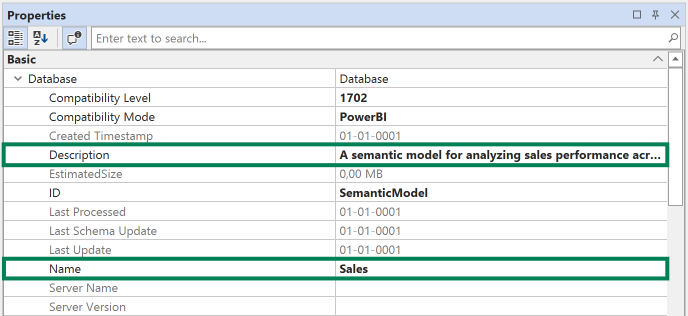
- If you save to a folder, set the serialization mode to TMDL under Tools > Preferences > File Formats.
- Select File > Save As or File > Save to Folder.
- Choose a folder and select Save with supporting files.

- Click Save.
Tabular Editor creates the .SemanticModel folder, for example Sales.SemanticModel, in the save location and writes the files into it.
Git Integration in Microsoft Fabric
Git integration is available on workspaces assigned to Microsoft Fabric F-SKU capacity, Power BI Premium capacity or Power BI Premium Per User (PPU).
Warning
Git Integration for the Semantic Model item is currently in preview. For the latest information on supported items for Fabric Git Integration, see Supported items in Fabric Git Integration.
Caution
Don't enable Git integration on the Fabric workspace that hosts your Tabular Editor workspace databases. If Tabular Editor synchronizes a model to a Git-connected workspace, the workspace shows uncommitted changes that don't match the repository, and syncing them causes Git conflicts.
Keep the Git repository and the workspace separate, and deploy semantic models to workspaces with Tabular Editor, the Fabric REST APIs, Fabric CLI or the fabric-cicd Python library.
Using Git integration with Tabular Editor
After you save the model with supporting files, sync it to Microsoft Fabric:
- Save the model in Tabular Editor with Save with supporting files selected.
- Commit the changes to your Git repository.
- Connect your Fabric workspace to the Git repository.
- Click Update all in the workspace source control pane.
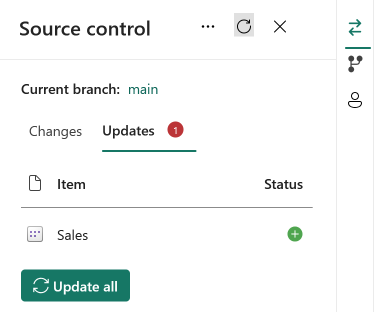
The workspace shows the semantic model under the displayName from the .platform file, which is the Database Name you set in Tabular Editor.
If the model has no culture, Tabular Editor sets it to en-US when saving with supporting files. Without a culture, the initial synchronization with Fabric leaves uncommitted changes.
For more information, see:
Comparing serialization formats
Fabric Git integration supports both serialization formats:
- TMDL is a human-readable text format. Its diffs are easier to review in Git.
- TMSL (.bim) stores the model as a single JSON file, which older tools and workflows read.