Model deployment
Tabular Editor 3 (Business and Enterprise Edition) can take a copy of the currently loaded semantic model metadata, and deploy it to an Analysis Services instance, or the Power BI / Fabric XMLA endpoint.
To perform a deployment, launch the Deployment Wizard through the Model > Deploy... menu option.
Note
Tabular Editor 3 Business Edition has certain limitations regarding what type of Analysis Services instance, or Power BI / Fabric workspace is supported for XMLA connectivity. This applies to deployment as well.
Destination server
On the Destination Server page, enter a server name or pick one from the Server list of recent servers. Right-click a server in the list to pin it to the top of the list or delete it. The list is shared with File > Open > Model from DB.... For details, see Recent and pinned servers.
Deployment options
After selecting the destination server and database to deploy, you are presented with a list of Deployment options, as shown in the screenshot below.
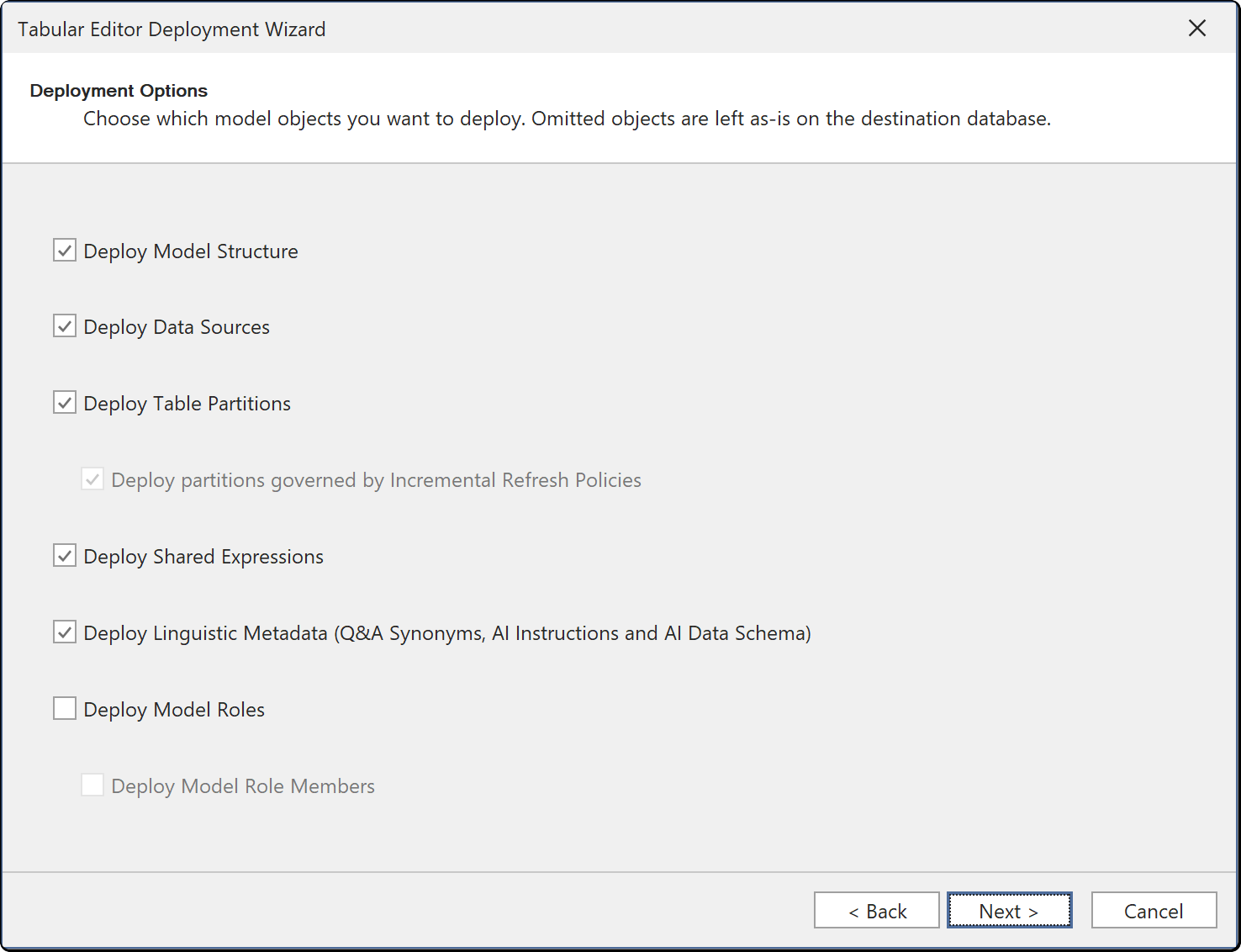
These are:
- Deploy Model Structure: This indicates that the model metadata will be deployed. Unchecking this prevents you from performing the deployment (the option exists for historic reasons).
- Deploy Data Sources: For models that use explicit data sources, this option indicates whether any such data sources will be included in the deployment. Unchecking this option may be useful, if one or more properties on a data source has been modified, and you do not intend to deploy these modifications. For example, if you are deploying model metadata from a Development environment to a Test environment, you may want to retain any connection strings, etc. on the destination environment as-is. Note that this option is typically not enabled for Power BI / Fabric semantic models, because such models use implicit data sources, where credentials are managed by the Power BI service, and connection details are stored in the M queries on partitions or shared expressions in the model.
- Deploy Table Partitions: This option indicates whether table partitions should be deployed. In some cases, the destination database may contain partitions that are not present in the model metadata. Unchecking this option will prevent the deployment from modifying any existing partitions on the destination server. If this option is checked, Tabular Editor will synchronize the partitions on the destination server with the model metadata. If any partitions are present on the destination server, but not in the model metadata, they will be removed (including the data contained in them).
- Deploy partitions governed by Incremental Refresh Policies: When the Deploy Table Partitions option is enabled, you will have an option to avoid deploying partitions that are governed by Incremental Refresh Policies. This is useful when you have a model with partitions that created automatically by the Incremental Refresh Policy, and you want to deploy all partitions except those governed by the policy.
- Deploy Shared Expressions: Deploys the model's shared expressions, such as Power Query parameters and shared queries. Clear it to keep the shared expressions that exist on the destination database.
- Deploy Model Roles: This option indicates whether roles defined in the model should be deployed. Unchecking this option will retain existing roles on the model as-is. If you are deploying changes to tables or columns in the model, you may have to revisit RLS or OLS settings, to ensure that they are still valid.
- Deploy Model Role Members: This option indicates whether role members should be deployed. It is common to manage role members directly on the server, rather than in the model metadata. Unchecking this option will prevent the deployment from modifying any existing role members on the destination server.
- Deploy Linguistic Metadata (Q&A Synonyms, AI Instructions and AI Data Schema): Deploys the linguistic metadata of each culture in the model. In Power BI, a culture's linguistic metadata holds its Q&A synonyms and the AI instructions and AI data schema set up with Prep data for AI in the Power BI service. The option is selected by default. Clear it to keep the linguistic metadata on the destination semantic model when you redeploy over it:
- a culture in both models gets the model's translations and keeps the destination's linguistic metadata
- a culture that exists only on the destination is kept with its linguistic metadata and without its translations
- a culture that exists only in the model is deployed without linguistic metadata
Tabular Editor doesn't update the kept linguistic metadata, so a kept AI data schema can list tables or columns that the deployed model no longer contains.
Data source credentials
By default, Tabular Editor doesn't save passwords, account keys and other secrets when it saves a model to disk. A model loaded from a file may therefore have data sources with a missing secret. The deployment wizard checks for this before it deploys. A secret counts as missing when it's empty or ********. The wizard checks:
- a provider data source whose connection string contains a password keyword, such as
PasswordorPwd, - a provider data source that impersonates a specific Windows account,
- a structured data source that uses Windows or username/password authentication, or an account key.
For each missing secret, the wizard asks you for the credentials the server should use when it refreshes the model. Tabular Editor stores what you enter, encrypted, as a data source override in the User options (.tmuo) file file, and uses it on the next deployment instead of asking again.
When you clear Deploy Data Sources, the wizard runs the same check on the data sources that already exist on the target. If the server doesn't return a secret that one of them needs, the wizard asks for it on every deployment, because these answers aren't stored.
Power BI and Fabric semantic models don't store credentials in the model. You set them on the semantic model in the Power BI service instead.
Deployment script
During deployment, Tabular Editor generates a CreateOrReplace TMSL script, which is then executed against the Analysis Services engine. The CreateOrReplace script contains all the metadata required to recreate the model, including tables, columns, measures, relationships, perspectives, translations, etc. If the model does not already exist on the target server, it will be created. If the model already exists, existing objects will be replaced with the new metadata specified in the script.
If you clear an option on the Deployment options page, the generated TMSL script keeps the destination's existing definition of those objects. The last page of the deployment wizard, Deployment Summary, lists the selected options. Click TMSL script to review the generated script before you deploy. Export build... ignores the Deploy Shared Expressions and Deploy Linguistic Metadata options.
Deployment impact
Warning
This type of deployment is a metadata-only deployment. Depending on the types of changes made to the model, imported data could be lost during deployment. In this case, you may need to execute a refresh operation once the deployment is complete.
As a rule of thumb, the following changes can be made to the model without requiring a subsequent data refresh:
- Adding/editing/removing measures and KPIs, including their DAX expressions.
- Editing properties such as FormatString, Description, DisplayFolder, etc.
- Adding/editing/removing metadata translations, perspectives, OLS and RLS roles.
The following changes may require a Calculate refresh, before the objects can be queried:
- Adding/editing calculated column, calculated tables and calculation groups
- Adding/editing relationships
- Adding/editing hierarchies
- Removing columns/tables
The following changes may require a Full refresh:
- Adding/editing partitions, tables and columns
Warning
Because of the potential impact of deploying a semantic model this way, we recommend not using this option to perform a deployment against a production environment. It is better to set up a CI/CD pipeline for deploying models to production environments.