Connect to Fabric and OneLake
The Fabric connector lists the Lakehouse, Warehouse, SQL database and mirrored database items in the Fabric workspaces you can access, and imports tables from them. Mirrored Azure Databricks catalogs are listed as mirrored databases. Open the dialog from Model > Import tables... by choosing Microsoft Fabric Lakehouse, Microsoft Fabric Warehouse, Microsoft Fabric SQL Database or Microsoft Fabric Mirrored Database.
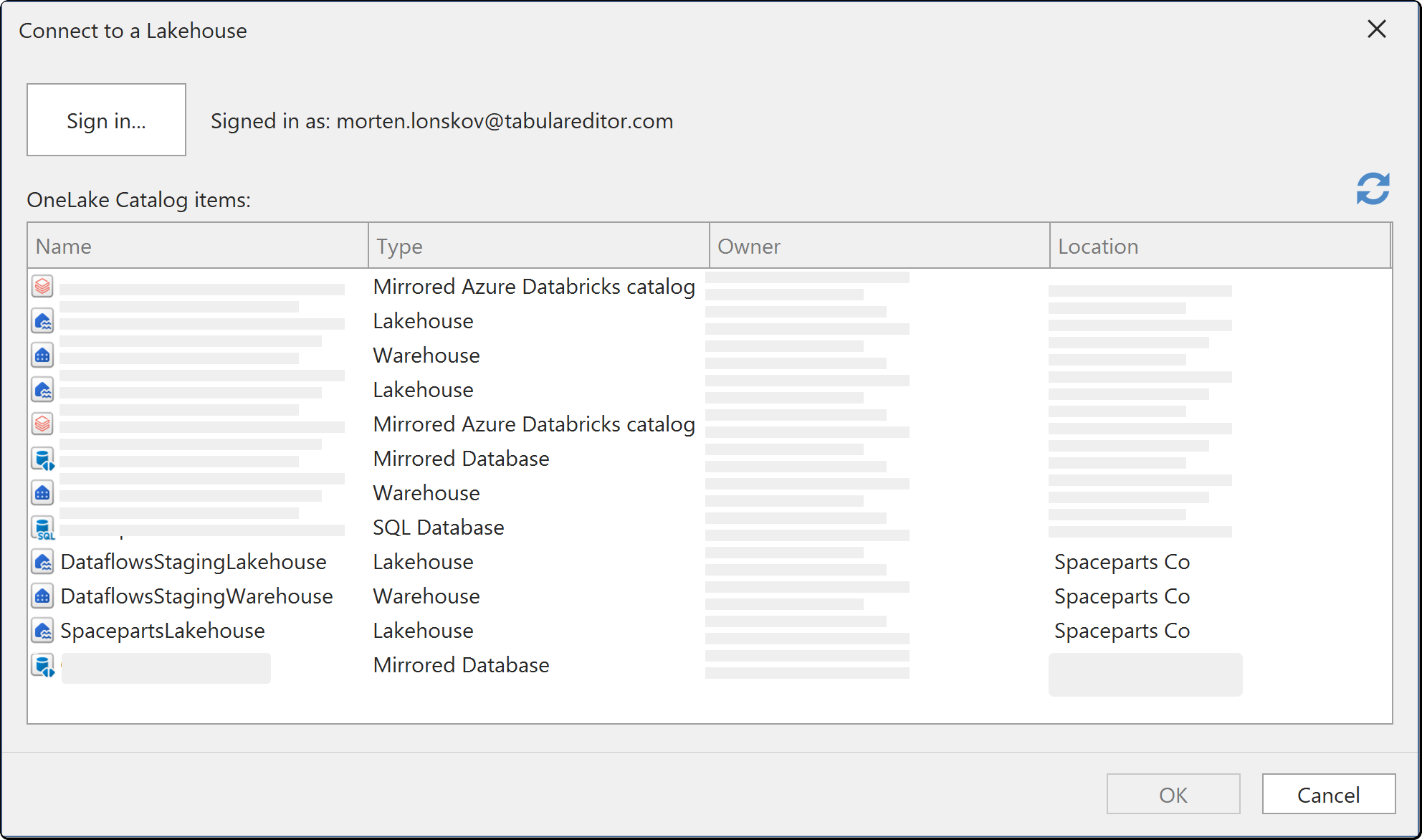
Connection fields
| Field | Description |
|---|---|
| Sign in... | Signs in to the Power BI service with Microsoft Entra ID |
| OneLake Catalog items | The items of the selected type in the workspaces you can access, with their Name, Type, Owner and Location. Select one item |
Authentication
Sign in... starts a Microsoft Entra ID browser sign-in. If no items appear after you sign in, your account has no access to a workspace that contains them, and a workspace admin grants that access in Fabric.
Tabular Editor saves the connection settings and credentials in your user options file (see Where credentials are stored).
Import and Direct Lake
On the last page of the Table Import Wizard, you choose whether the selected tables are created in Import mode or Direct Lake mode:
- Import tables read their schema through the item's SQL analytics endpoint. See Choosing objects to import.
- Direct Lake tables read directly from OneLake. See Direct Lake on SQL Semantic Models.